
Zap creation
Examples: How to create ZAP
Example 1 - Trigger from vtenext with action in Zapier
in this example we send an email when a Lead is created in vtenext:
- Go to https://zapier.com/app/dashboard
- Click on Create
- Trigger: vtenext, event = new lead, account = use a valid account
- Test it, you should get a Lead, click on Continue with selected record
- Add an action, for example Email by Zapier -> Send Outbound Email
- In this action, configure the fields:
- To: email address which will receive the email
- Subject: Lead Created + variables from the email
- Body: Text of the email with variables
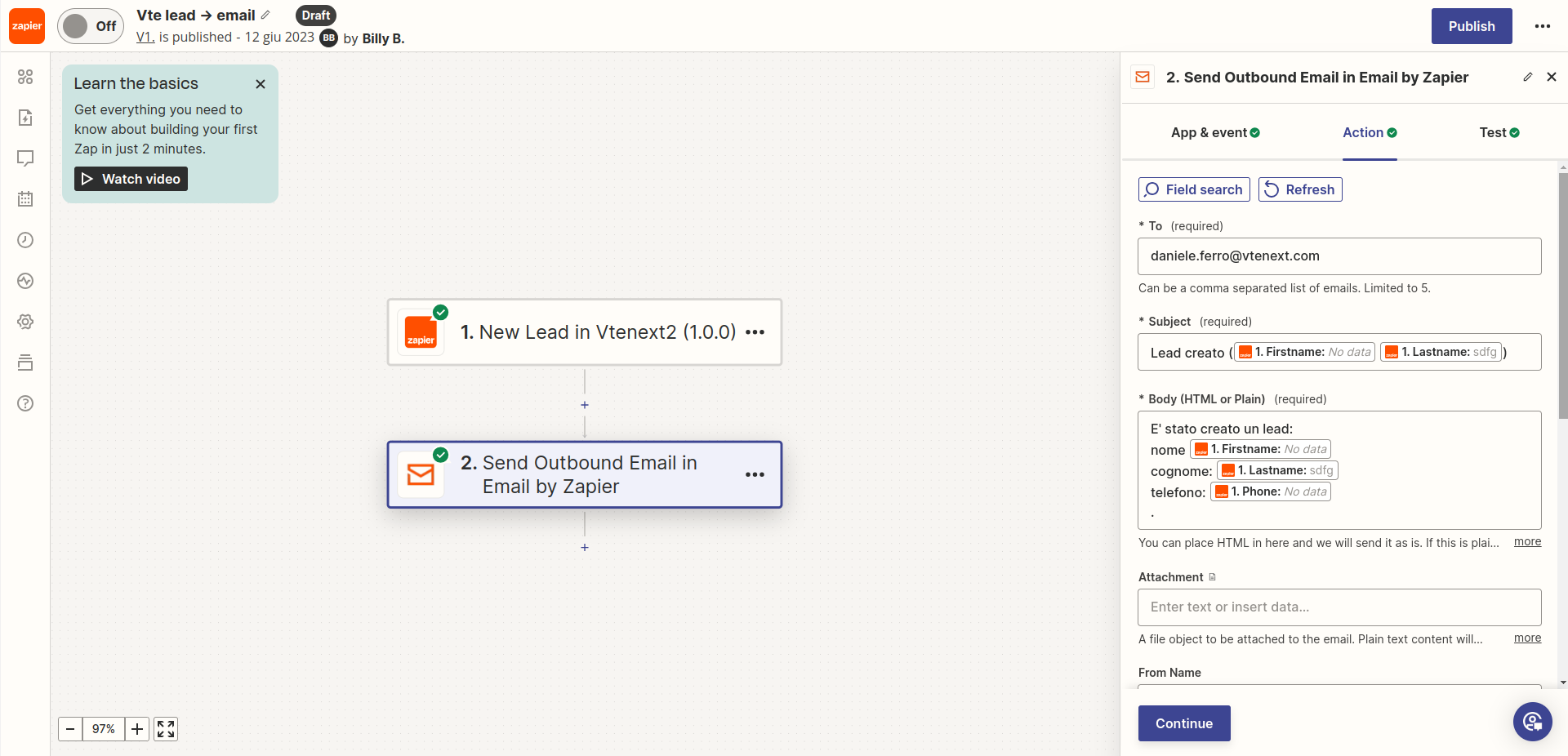
Click on Continue and check if you received the email. Click then on PUBLISH and verify that the Zap is active.
Now, to set off the trigger from vtenext a process containing the call to Zapier must be created.
In the simplest case, the process can have this flow:
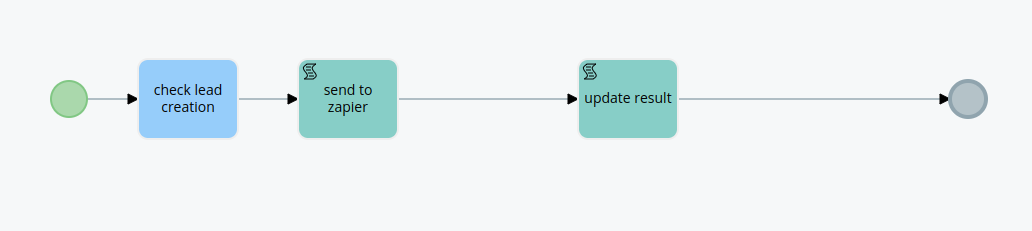
And one of the actions should be of type "Call External Webservice", using the webservice that was automatically created when the Zap was actrivated. The action should be configured as follows:
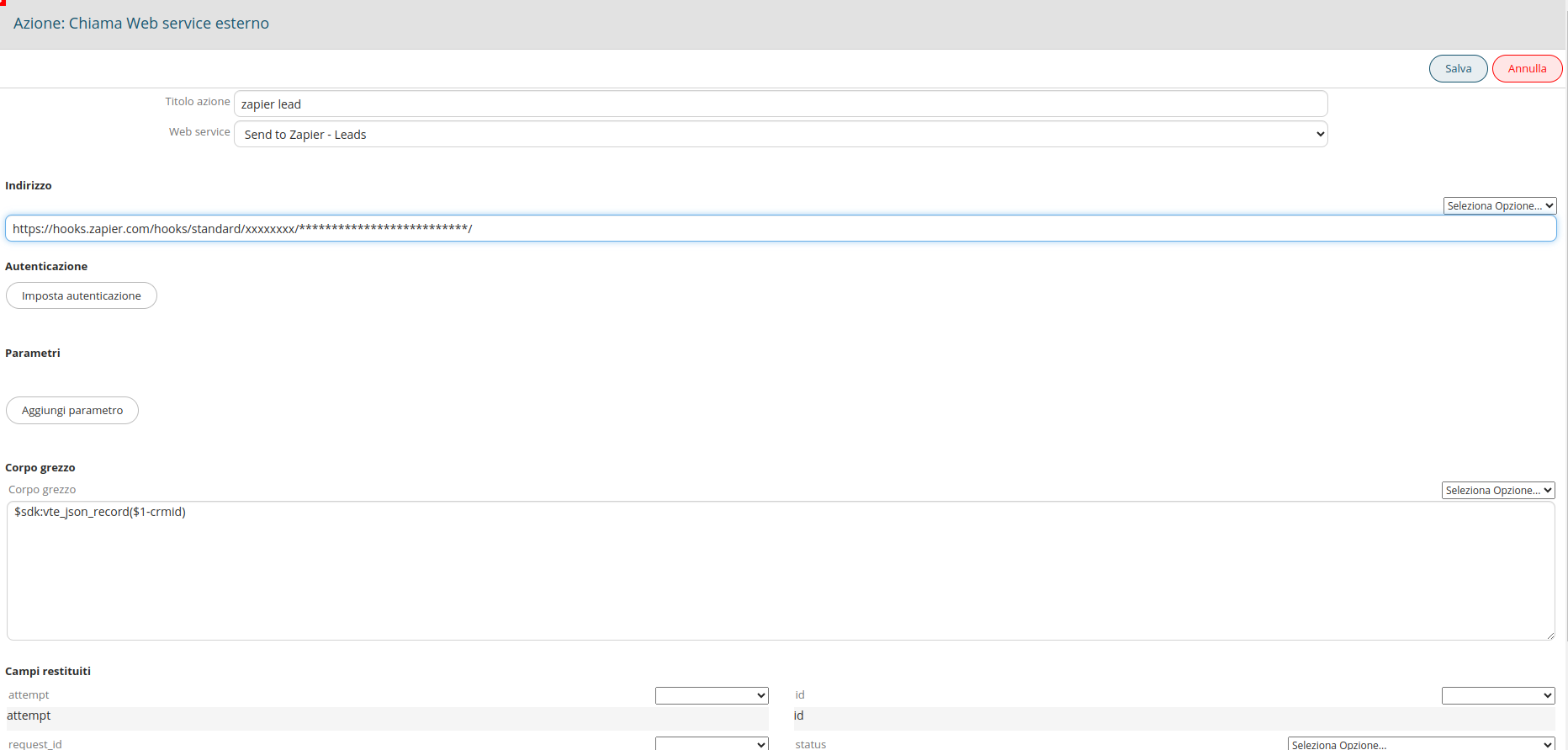
In the Raw body the string to use is
$sdk:vte_json_record($1-crmid)where $1-crmid is the record handled by the process, that we want to send to Zapier
or
$sdk:vte_json_field_string($1-crmid, firstname, lastname, phone, ...) To send only some fields. You can choose the ones that interest you the most.
Once the process is active, when the action is executed, Zapier will receive the record and on it the action configured in the Zap will be executed.
NOTE: If the zap is deactivated and recreated, the process must be modified to use the new webservice.
Example 2 - Trigger from Zapier and action in vtenext
In this example, we will try to create a lead in vtenext when an email is sent to a Zapier address:
- Go to https://zapier.com/app/dashboard
- Clock on Create
- Trigger: Email by Zapier ->New Inbound Email
- Configure a prefix for the mailbox, for example: testvte.trkbqw@zapiermail.com
- Send an email to that address and verify that Zapier receives it
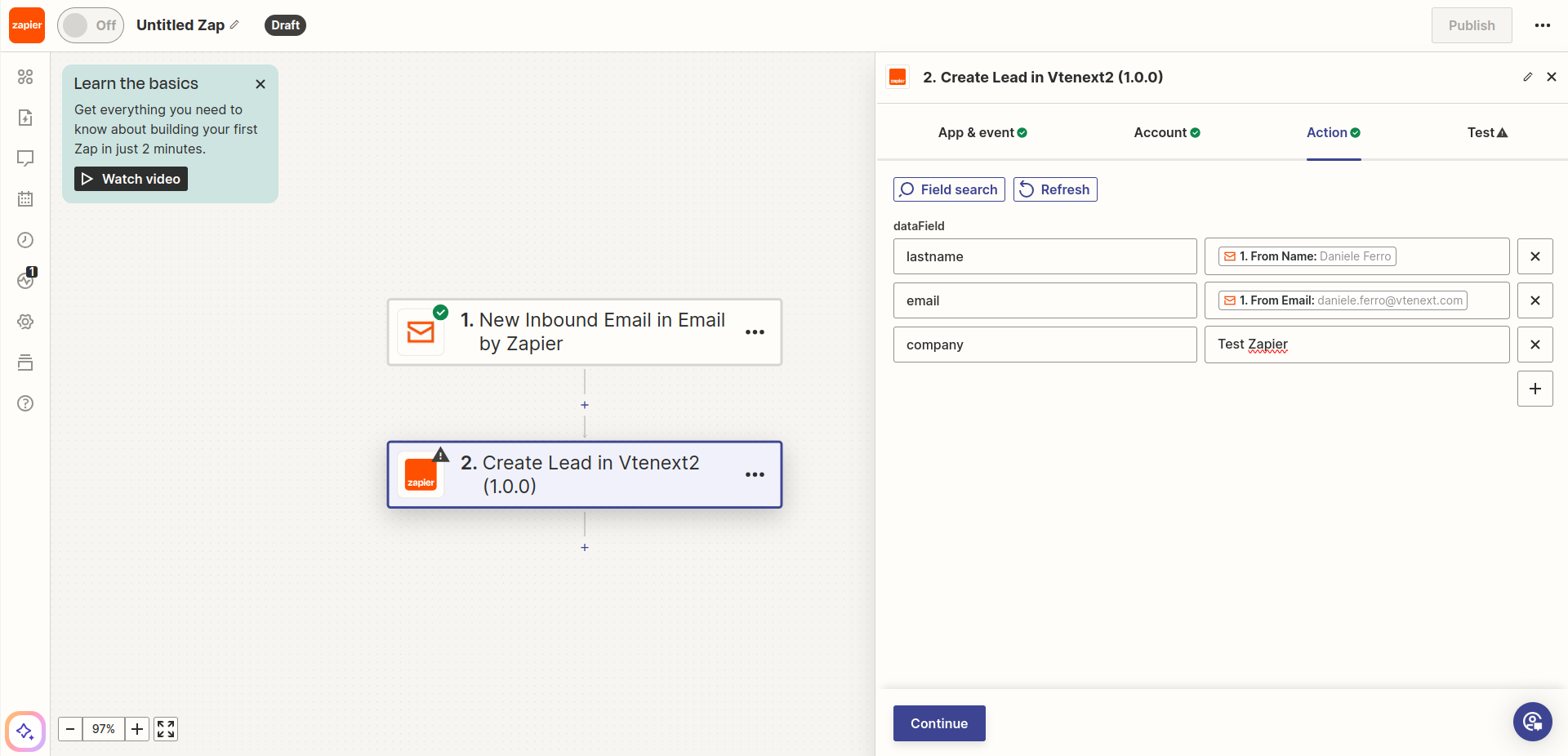
- Create a new action: Vtenext -> Create Lead
- Use the proper account and configure the fields to send to vtenext, remembering to map all mandatory fields (otherwise the Lead cannot be created), for example:
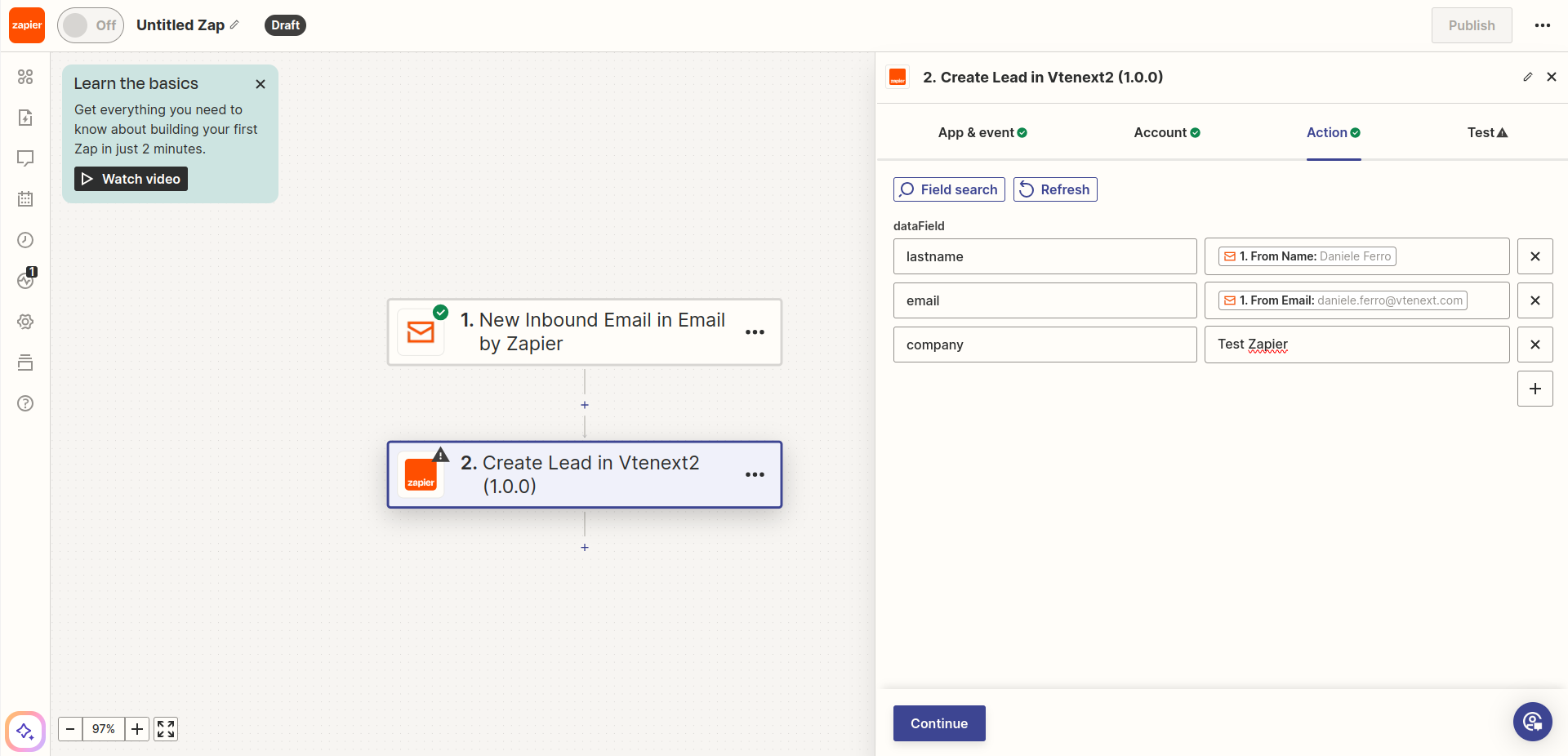
- Make a test to verify the proper creation of the lead.
Finally, click on PUBLISH.
At this point, by sending emails to that configured Zapier address, leads are created in vtenext.
These are just a few examples of what the integration with Zapier can do. You can try and come up with all the triggers you want! Just think that, using Zapier paths, it is possible to create or update records by searching directly in the attributes of incoming emails. But it's just an example that helps you understand the power of the tool.