
MailUp Plugin - Step-by-Step Manual
MAILUP PLUGIN
Connect your CRM with your preferred mailing tool. Nothing is more powerful than linking your email services to a CRM, and this integration makes everything simpler, faster, and more efficient.The ultimate solution for:LOGIN TO YOUR VTENEXT
Log in to your VTENEXT CRM by entering your username and password.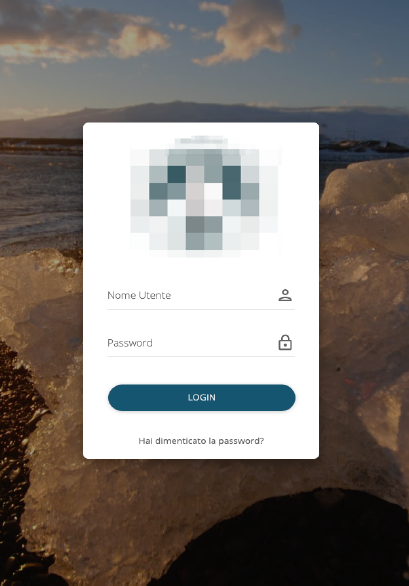
CREATE A TARGET IN VTENEXT
A target consists of lists of names, a collection of companies, contacts, and/or leads (or even other targets) to whom you want to send the newsletter.
After logging in to VTENEXT, click the arrow to open the search bar and type "target." Click on Target to access the module.
At the top left, click CREATE to create a new target.
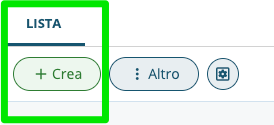
Enter the Target Name (mandatory) and define the target type. A dynamic target is used to synchronize the target with a report or filter.
There are two options (selectable by the user):
The update occurs every 6 hours and also whenever the newsletter is sent.
The Newsletter module can manage duplicate email addresses, preventing repeated sends to the same address.
SYNCHRONIZING TARGETS WITH MAILUP
To ensure that the target is synchronized and visible on MailUp, we need to check the “MailUp Synchronization” box and select the MailUp list where we want to add the target names to send the newsletter. Finally, click Save.
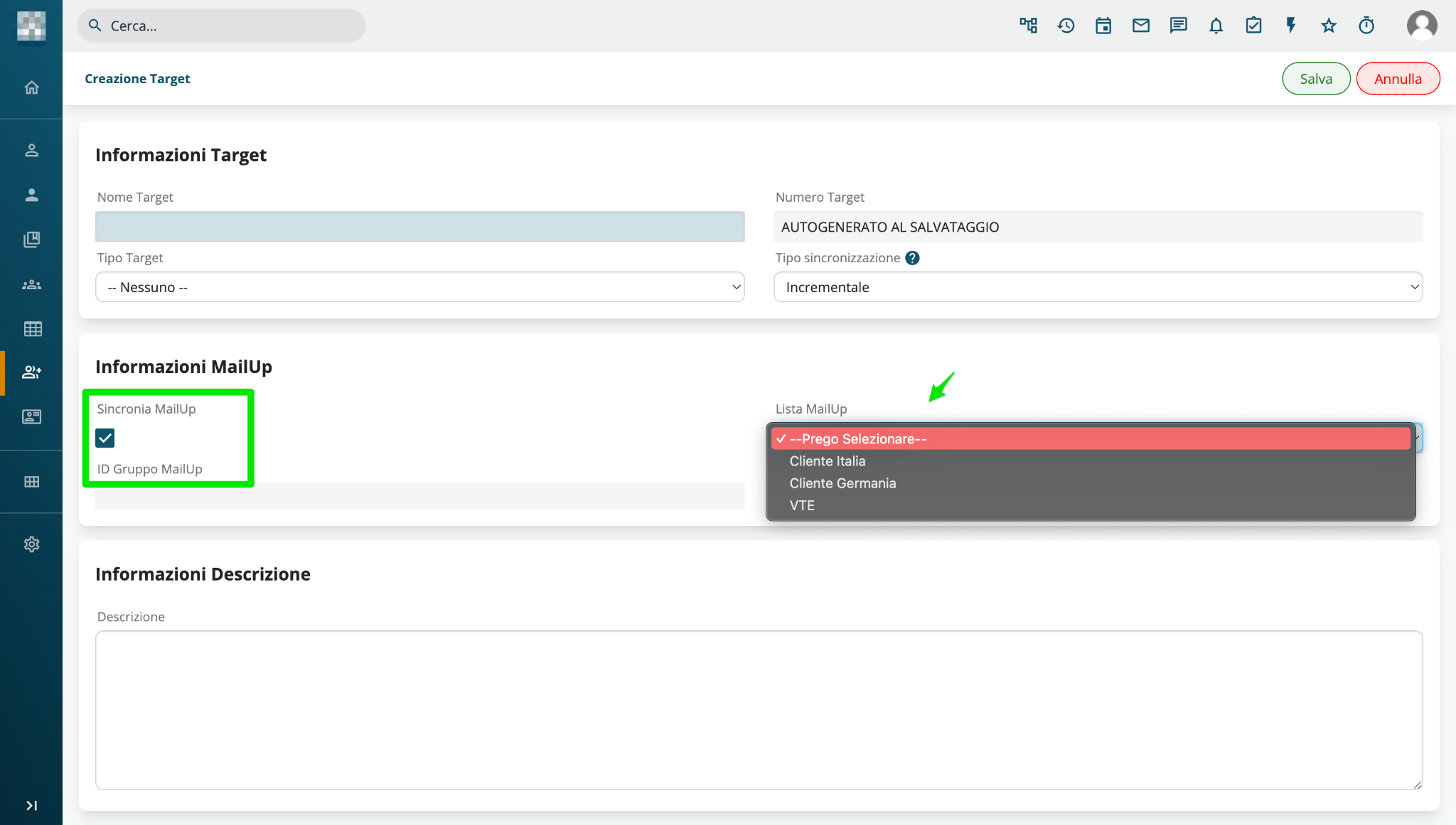
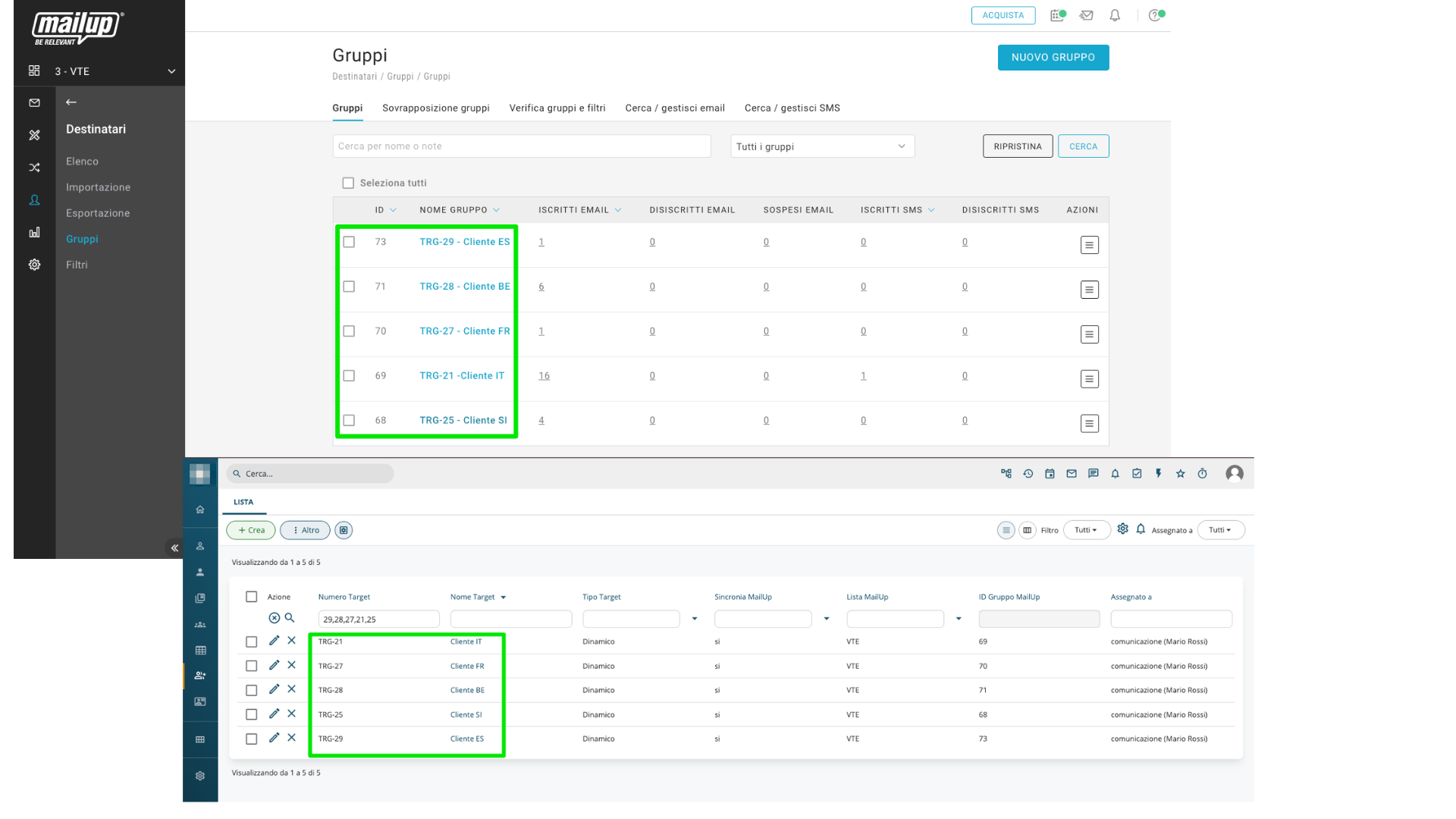
The target synchronized with MailUp will automatically appear as a group in the selected list.
DATA SYNCHRONIZATION OF SENDINGS
Once the newsletter is sent from MailUp, the newsletter will automatically be created in vtenext as well.
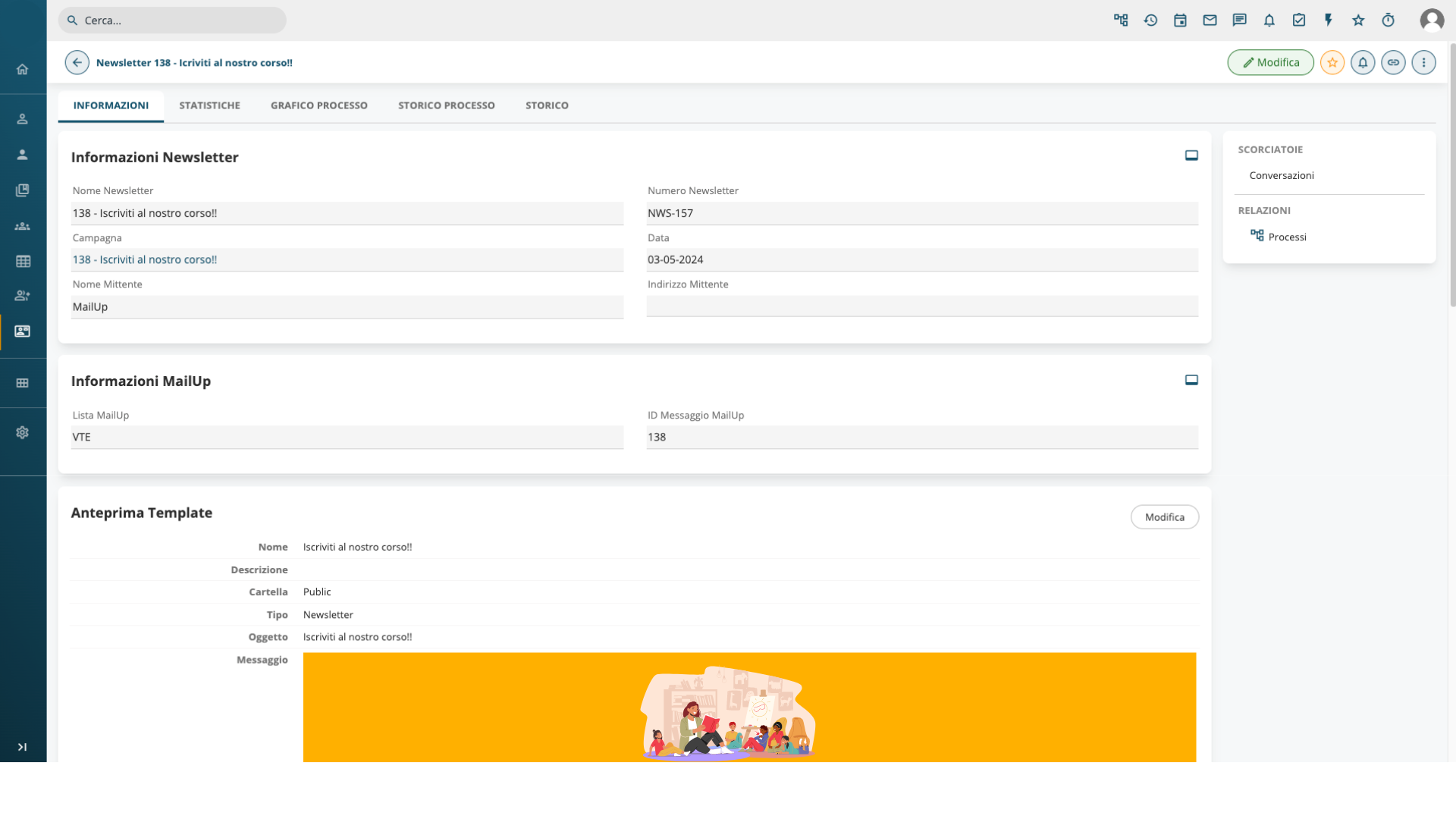
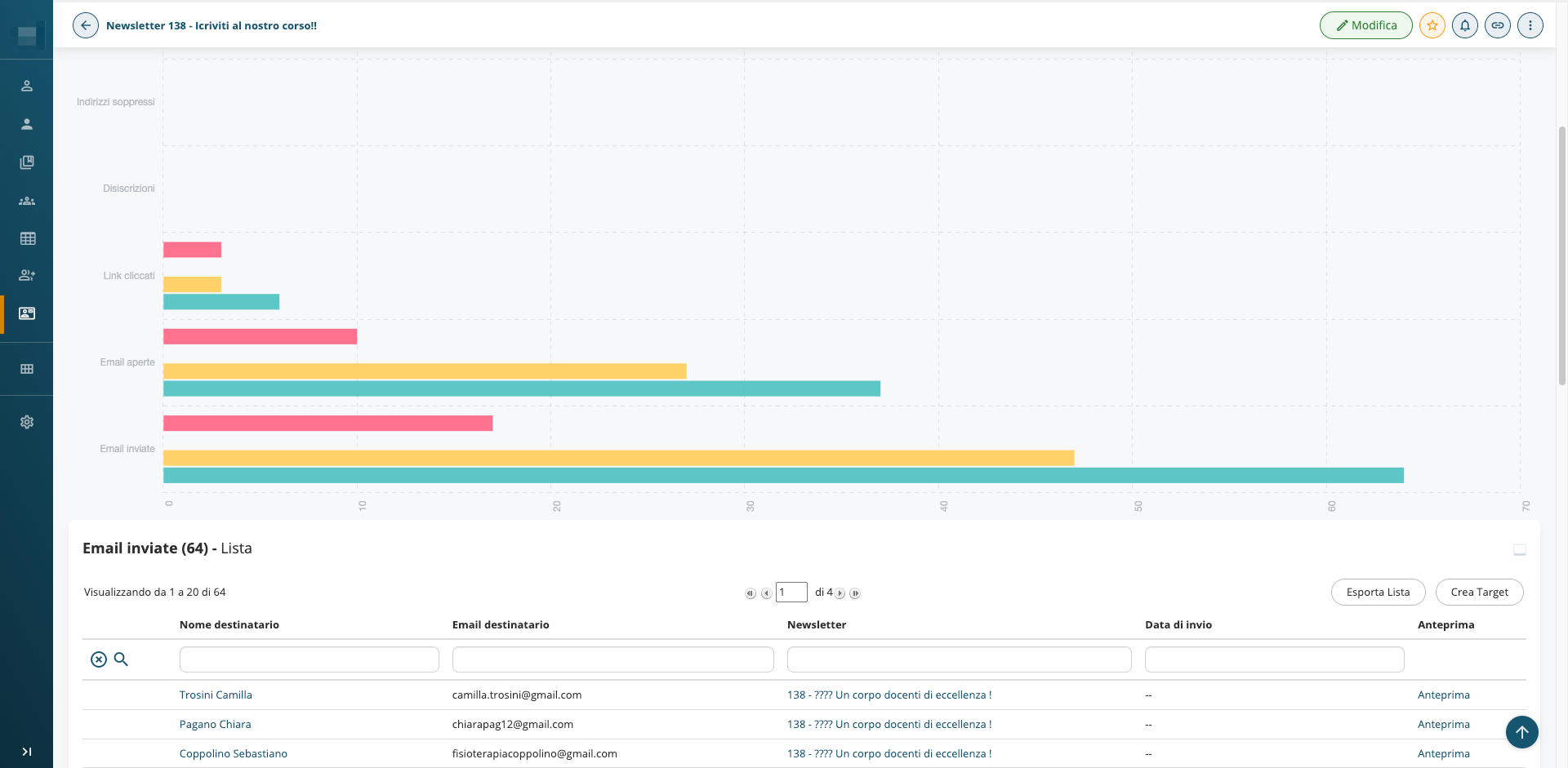
Sending statistics are also synchronized automatically. Click on the TAB > STATISTICS to view the sending data.
UNSUBSCRIBE INTEGRATION
When an unsubscribe occurs, the Receives Newsletter field for leads, contacts, and companies will be unchecked, and the unsubscribed name will be updated accordingly.

When a lead, contact, or company unsubscribes, the checkmark in the Receives Newsletter field will be removed, and the name will be marked as unsubscribed.