APP MeetApp for vtenext
Download App
To get the app is easy! Search for "MeetApp for vtenext" on your preferred app store (or click on the App Store or Google Play) and download it.
Login
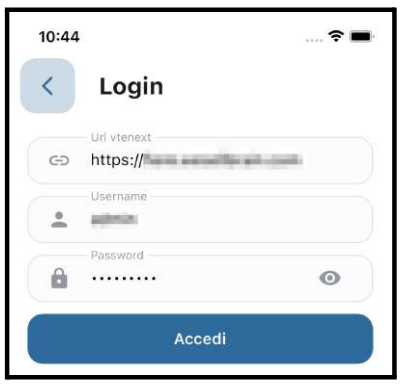
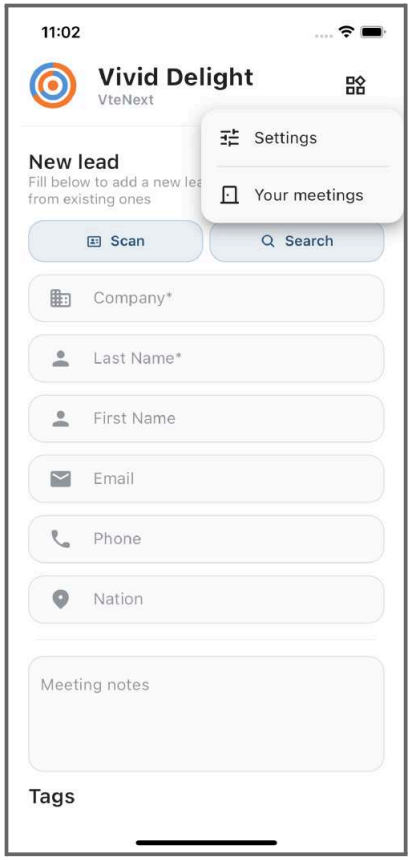
To log in, enter your credentials by clicking on the button in the top right corner and going to settings.
The three pieces of information needed to log in are:
- URL of your vtenext environment preceded by https://
- Username of your user
- Password of your user
The language of the app changes based on the language of the mobile device.
Select Event
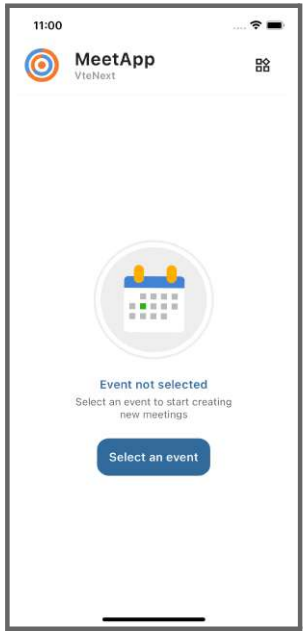
Select the event you are attending or simply a generic event such as business visits.
Insert a new meeting
When you meet a new person and enter the data such as company, last name, and first name, the meeting will be saved.
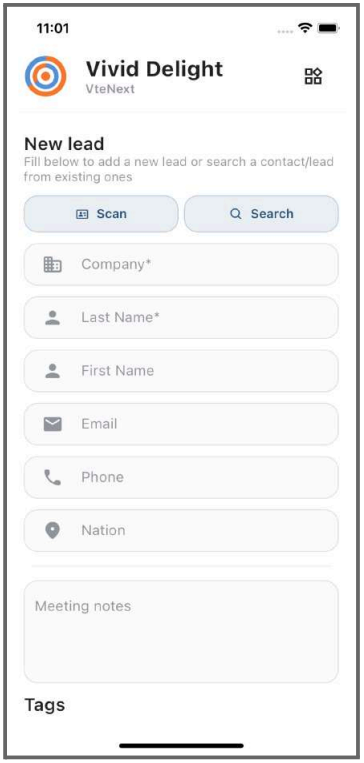
To create a lead, you will need to go to the meeting in vtenext, click on the three dots, and select "Convert to Lead."
Search and select an existing contact or lead
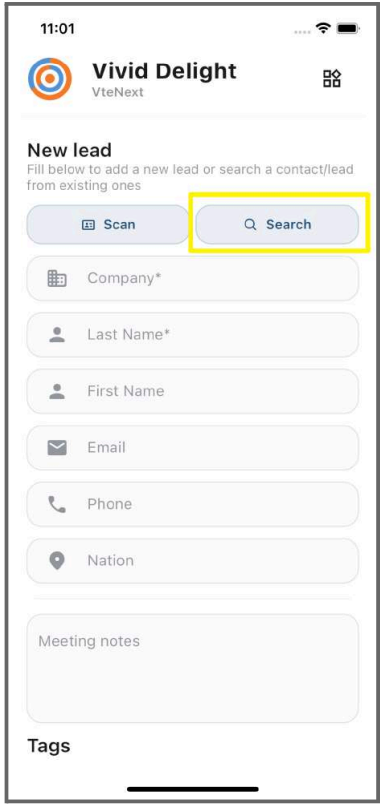
You can associate a meeting with an existing contact or lead. To do this, click on "Search," and you will see a list of your contacts and leads based on your visibility in the CRM.
To differentiate them from the list, leads are highlighted in 🟢green and contacts in 🟡yellow.
Save the meeting
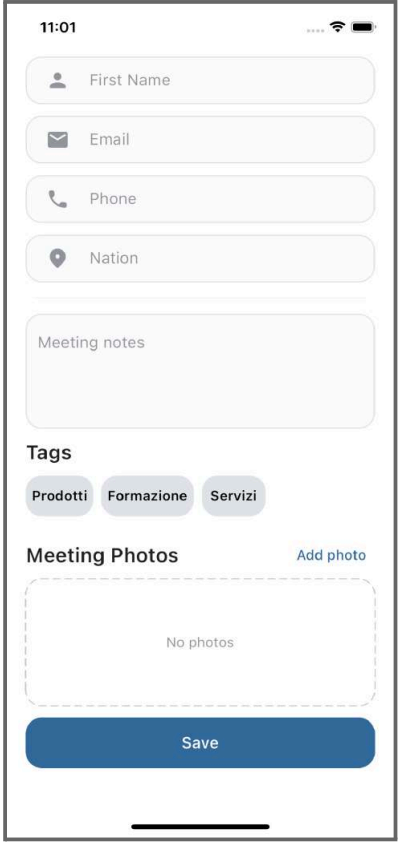
On the meeting, you can save useful data such as associating tags, taking notes, dictating through the microphone, and adding photos to the meeting.
Priority Tag
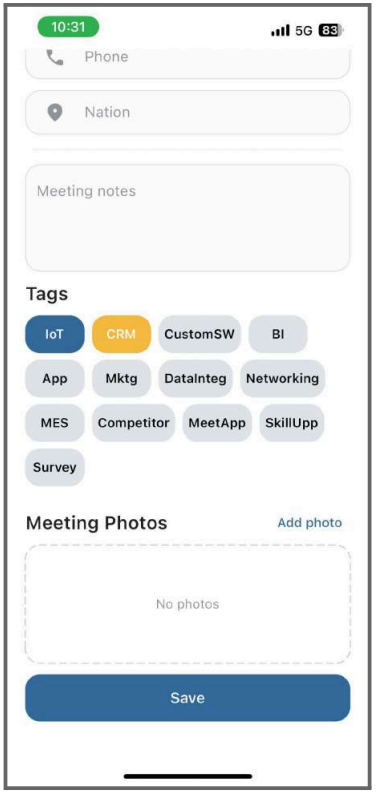
If you wish to highlight a tag as priority, meaning the one you consider most significant for that meeting, such as the interest shown by a potential customer in a specific product, press and hold the desired tag until it turns golden.
Settings
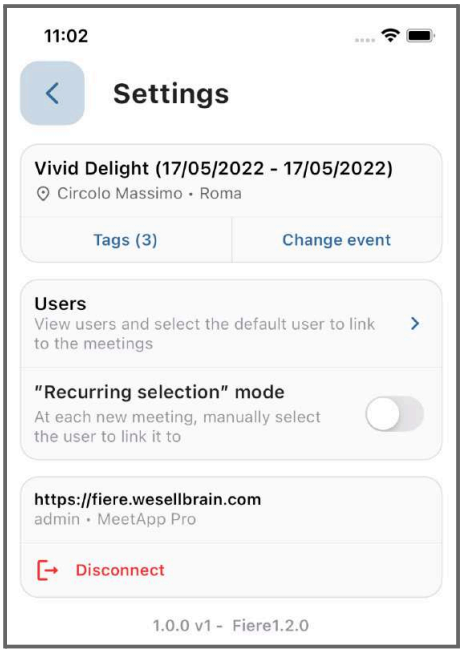
Within the settings, you can:
- Change event (select a new event)
- Tags: view existing tags or create a new one
- Users: view the current user or select a different user ● "Recurrence Selection" mode: if enabled, for each new meeting, you can manually link the user to whom it belongs. This is useful in cases where a single tablet is set up for multiple people to enter data.
- Disconnect
Your Meetings
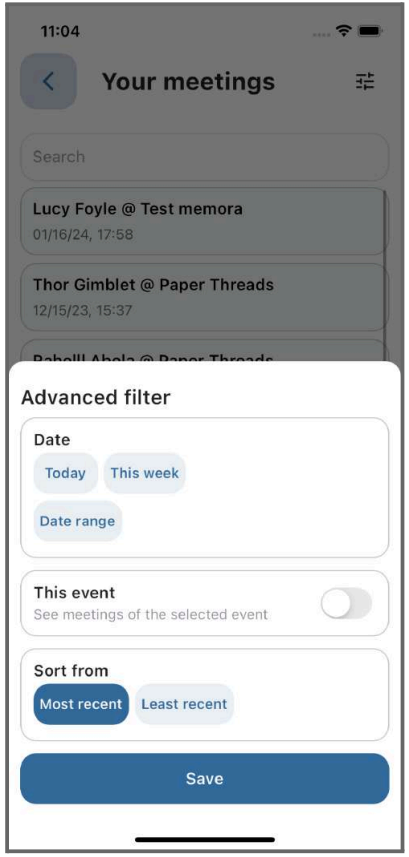
From the menu, you can click on "Your Meetings" to view the list of saved meetings. Additionally, you can filter the meetings by date, meetings and sort them chronologically or otherwise.
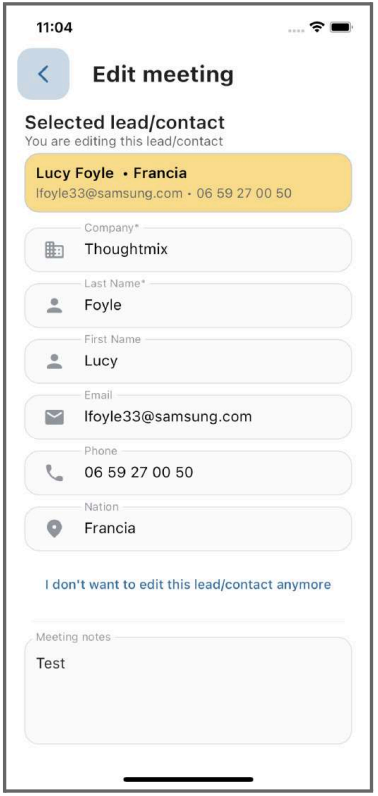
Edit Meeting
By selecting a meeting from the list, you can enter the details and make modifications.