
22.4 Agents
The Agents section allows you to configure AI agents that combine an LLM model, one or more MCP tools, and, if required, CRM documents to use as a knowledge base. In practice, this is where you define how the agent reasons, which tools it can use, and which content it can access to perform a task.
In summary: an agent is not just an AI model. It is a complete configuration that combines an LLM, operational tools, and document sources, allowing it to perform tasks in a more controlled and context-aware way within vtenext.
Prerequisite: Agent Orchestrator
To use agents, the Agent Orchestrator service must be installed and reachable. In the Agents list view, there is a dedicated section where you can specify the Orchestrator Endpoint, which is the base URL of the service.
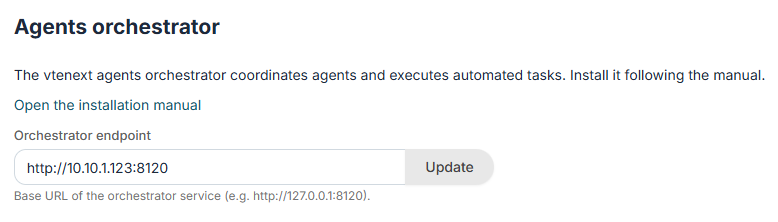
Important: if the orchestrator endpoint is not configured correctly, agents cannot be executed.
When to use it
- To configure AI agents to be used in the assistant or within processes.
- To associate a specific LLM with an agent.
- To provide the agent with access to selected MCP tools.
- To enable RAG capabilities by selecting CRM documents as knowledge sources.
- To apply control rules before and after response generation (guardrails).
The List View
The list displays all previously configured agents.
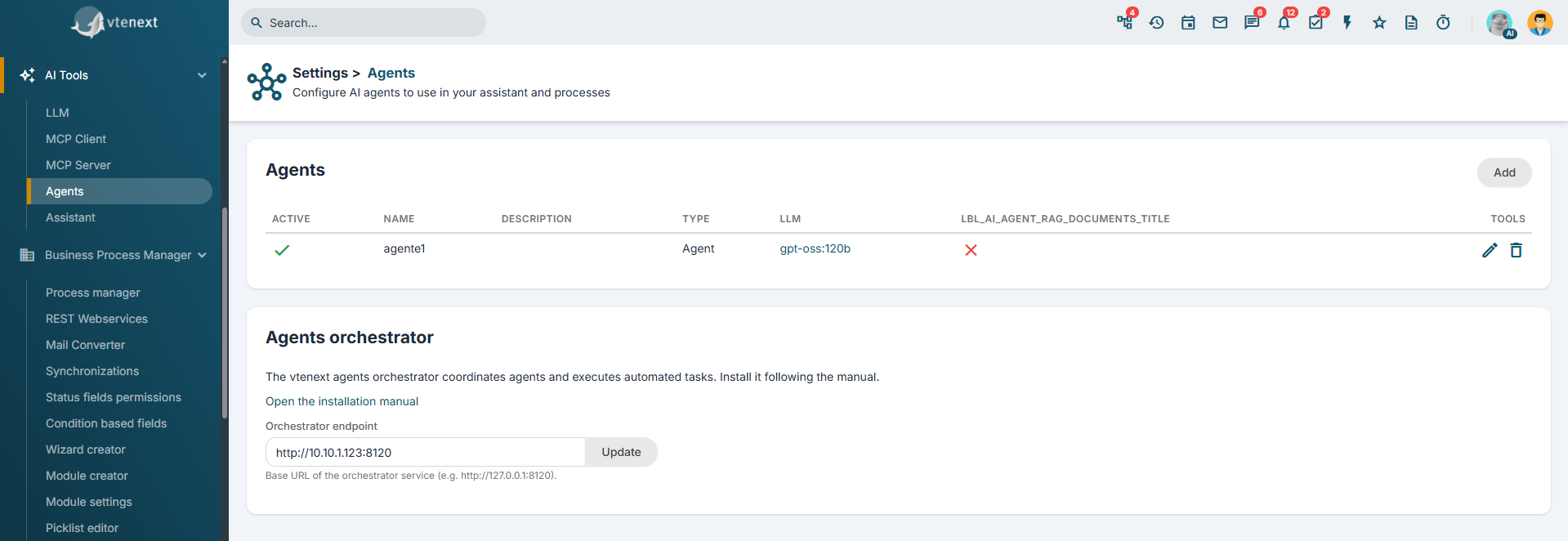
- Active: indicates whether the agent is enabled.
- Name: name of the agent.
- Description: text explaining the purpose of the agent.
- LLM: shows the associated model.
- Documents: indicates whether the agent has access to RAG documents.
From the list, you can create a new agent, edit it, or delete it.
Creating a New Agent
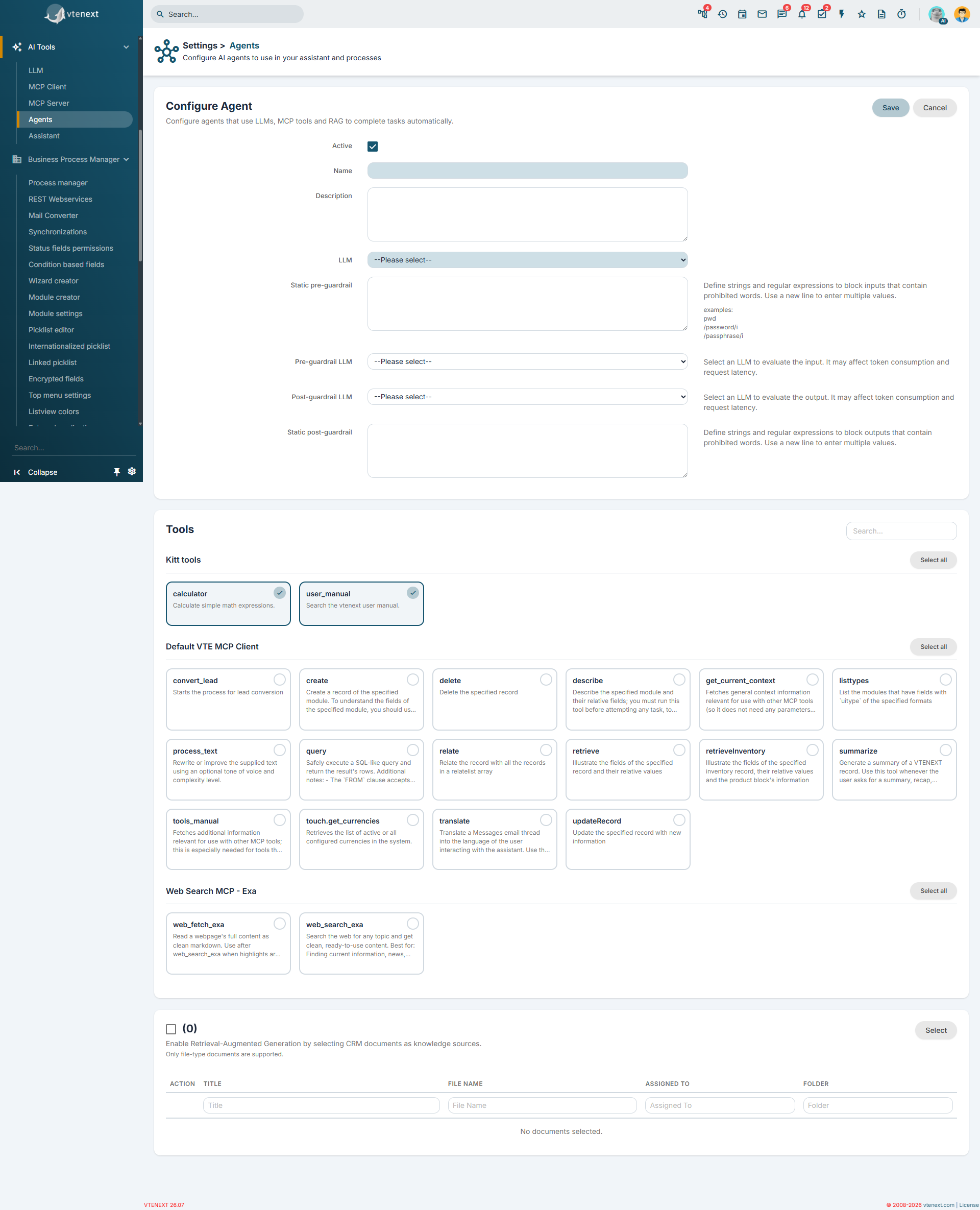
- Open the Agents section.
- Click Add.
- Enable or disable the agent according to your needs.
- Enter the Name and Description.
- Select the LLM to use.
- Decide whether to keep the LLM system prompt or override it for this specific agent.
- Select the tools the agent will be able to use.
- If necessary, enable the RAG capability and select the documents.
- Configure any guardrails.
- Save the configuration.
Main Fields
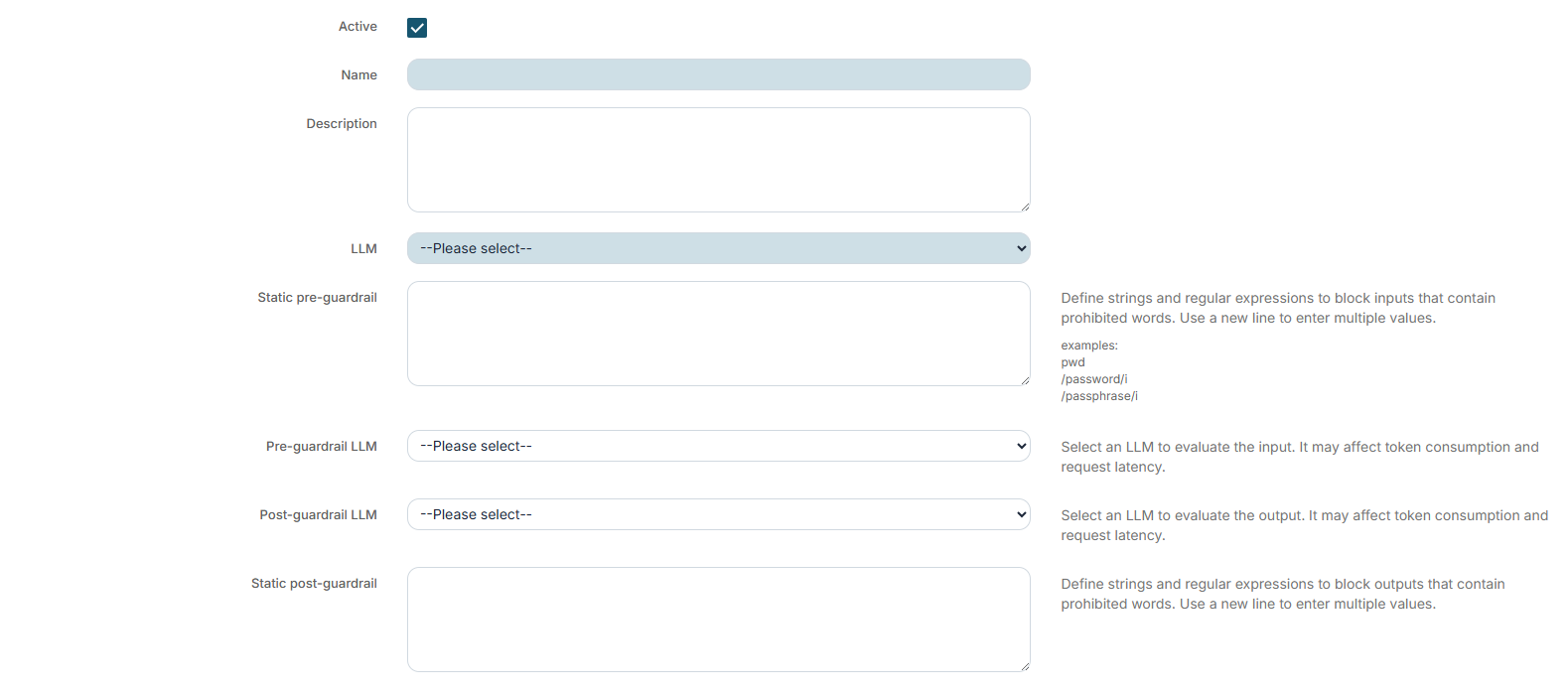
- Active: enables or disables the agent.
- Name: internal name used to identify the agent.
- Description: brief internal description summarizing the agent’s purpose.
- LLM: language model used by the agent.
- LLM System Prompt: displays the system prompt currently configured for the selected model.
- Override System Prompt: when enabled, the agent uses a specific system prompt instead of the LLM’s default one.
- System Prompt: agent-specific instructions, visible only when choosing to override the model’s prompt.
When to use system prompt override: it is useful when you want to keep the same LLM but significantly change the behavior, tone, or responsibilities of a specific agent.
Available Tools for the Agent
Below the main fields, you will find the Tools section, where you can choose which tools the agent is allowed to use.
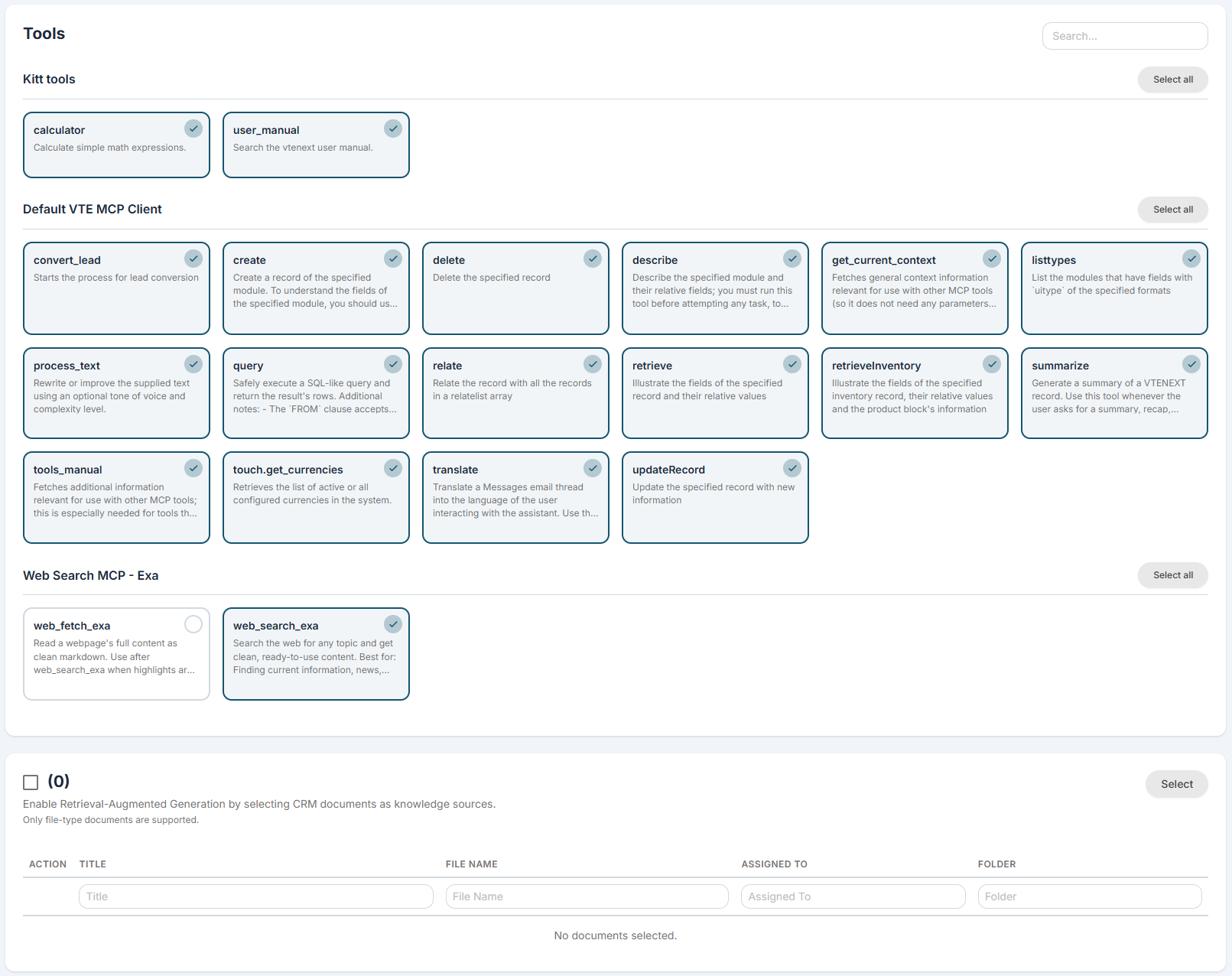
The tools are displayed by groups, based on the active MCP clients and the available internal tools.
-
Kitt Tools: includes basic internal tools such as calculator and user_manual.
-
MCP Clients: for each active MCP client, you can select the synchronized and available tools.
For each group, you can select all tools or quickly deselect them. A search function is also available to filter tools by name or description.
Warning: the agent can only use the tools selected in this section. If an MCP client is not configured or has no synchronized tools, it will not appear as an available source.
RAG Capability and Documents
If you want the agent to also work with CRM content, you can enable the RAG capability.

-
RAG Capability: enables the use of documents as knowledge sources.
-
Select: opens the document selector to add CRM files.
- Document Table: displays the title, file, owner, and document folder of the documents already associated.
Once added, documents remain linked to the agent and can be removed at any time from the table.
When to use RAG: it is useful when the agent needs to answer questions or perform tasks based on documentation, files, or company content stored in the CRM, rather than relying only on generic instructions.
Guardrail
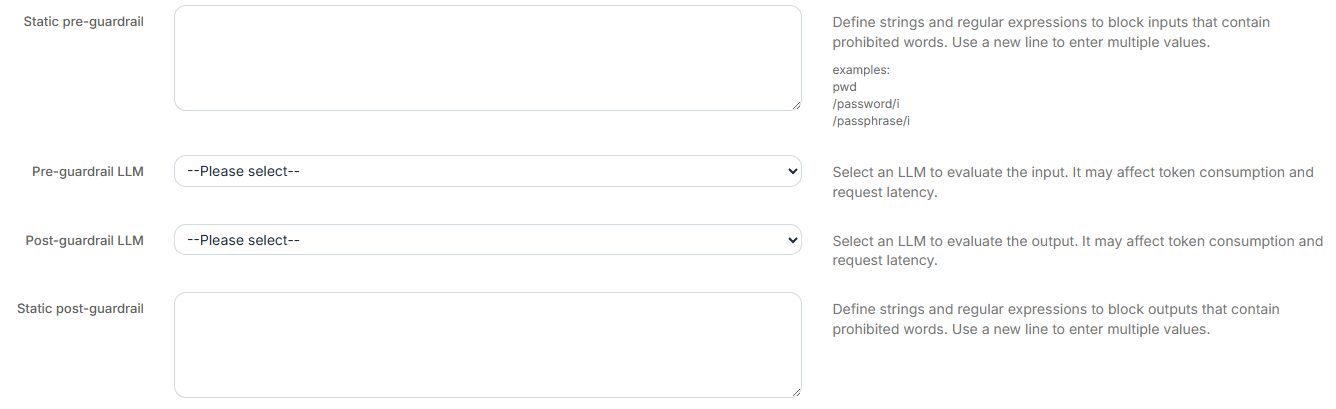
The Agents section also allows you to define checks before and after response generation.
-
Static Pre-Guardrail: blocks inputs containing prohibited words or expressions.
-
LLM Pre-Guardrail: uses an LLM to evaluate the input before processing.
-
Pre-Guardrail Prompt: defines the instructions used by the control mechanism to evaluate the input.
-
Static Post-Guardrail: blocks outputs containing prohibited content.
-
LLM Post-Guardrail: uses an LLM to evaluate the response before returning it.
-
Post-Guardrail Prompt: defines the instructions for the final validation step.
Static rules can include plain text or regular expressions, one per line.
Warning: LLM-based guardrails can increase token consumption and response times, as they add additional verification steps.
Practical examples
Example 1: Agent with operational tools
You can create an agent that uses an LLM and selected MCP tools to query data, perform permitted actions, or access external services such as web search.
Example 2: Document-based agent
You can create an agent focused on internal documents by enabling RAG and selecting only the files relevant to a specific department or process.
Example 3: Agent with enhanced controls
If the agent operates on sensitive content, you can apply pre-guardrails and post-guardrails to restrict inappropriate requests or responses.