14.10 Language Labels in PDF Maker
The Labels feature available in PDF Maker is very important if you want to manage PDFs in multiple languages.
When you open a PDF template for editing (or during creation, it makes no difference), a tab called Labels appears at the top.
Clicking on it takes you to the screen shown in the following image:
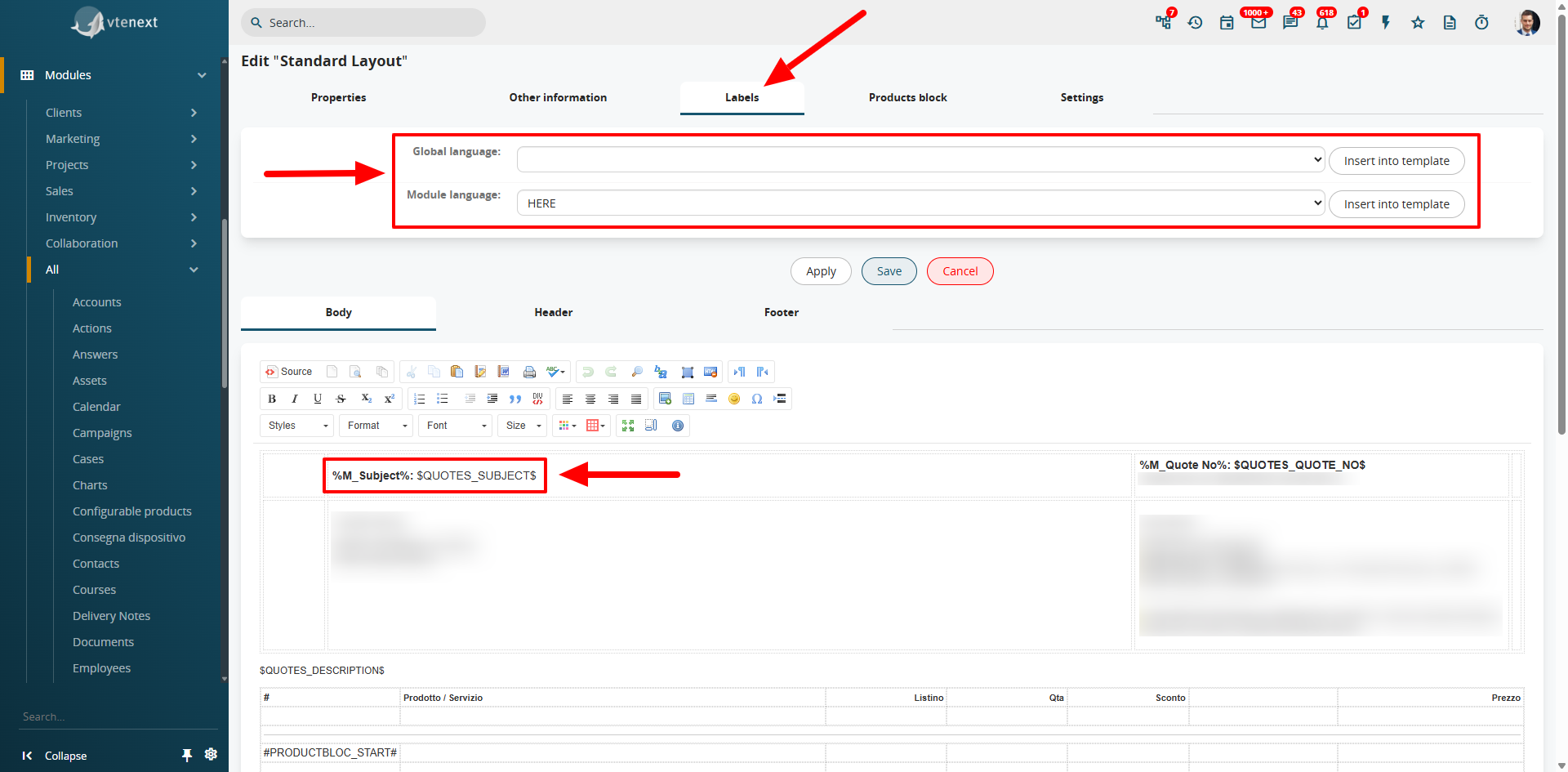
By analyzing it, you can see two main dropdown menus called GENERAL LANGUAGE and MODULE LANGUAGE. Let’s take a look at what they are used for:
|
General Language |
This section contains the label values from all CRM modules. Here you can find any type of label to quickly insert the desired entry. When the PDF is generated, the variable will automatically be translated into the selected language. |
|
Module Language |
This section contains the label values of the modules primarily involved in the configuration. For example, if you are creating a PDF for the Quotes module, you will have access not only to the labels of the fields within the Quote itself but also to those of related modules — such as Account or Contact. |
Let’s suppose you want to include the following values in your PDF:
Company Name: ELECTRO SpA
Phone: 123456789
By selecting in the MODULE LANGUAGE dropdown first the value Company Name and then Phone, you can obtain the variables corresponding to their respective labels.
Then, by returning to the Properties tab, you can locate the variables that define the actual field values (which the labels refer to).
This will result in the following setup:
%M_Account Name%: $QUOTES_ACCOUNT_ID$
%M_LBL_LIST_PHONE%: $R_ACCOUNTS_PHONE$
PDF EXPORT IN LANGUAGE
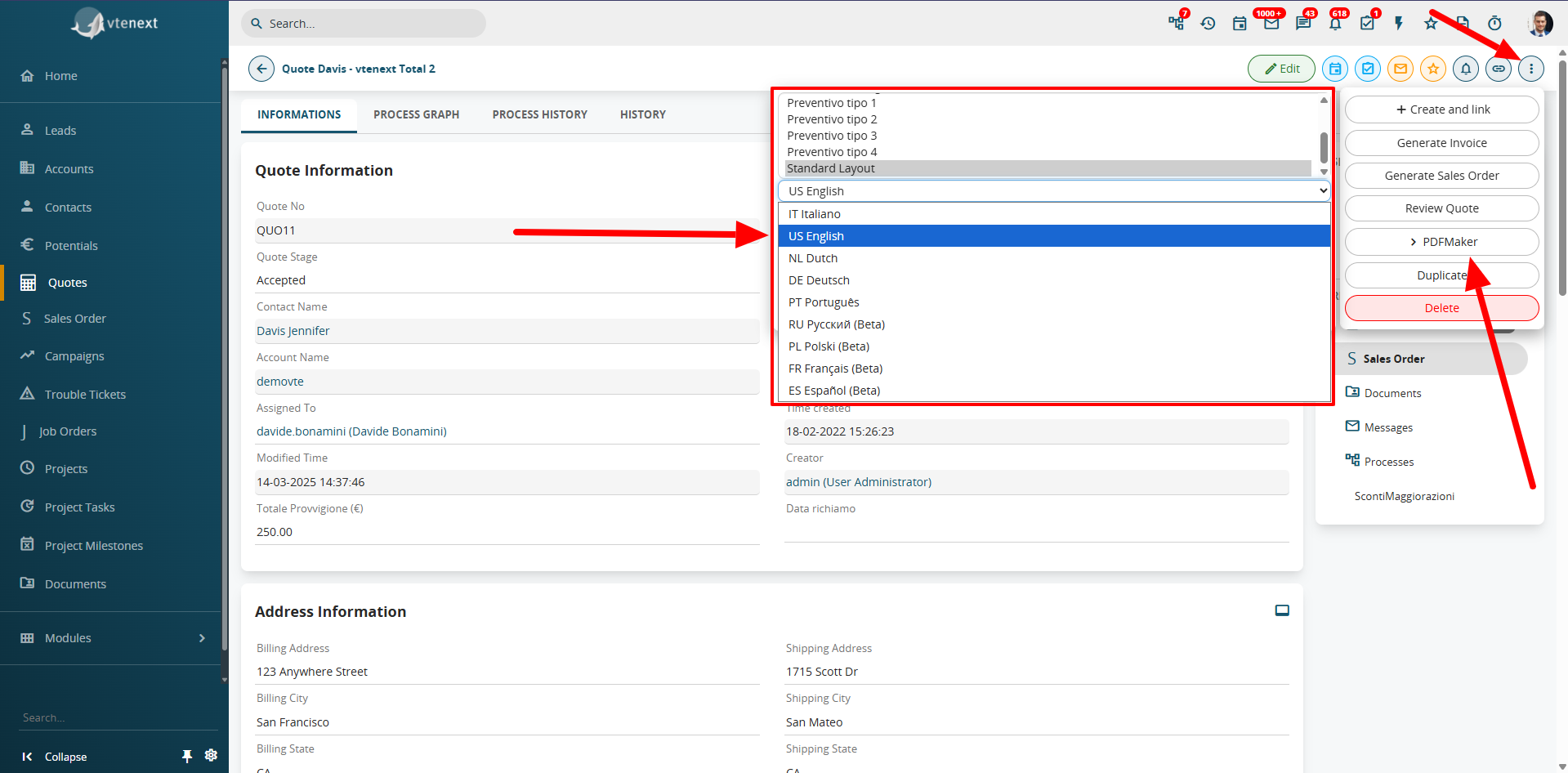
Finally, by going to the module for which the template was created and opening the desired record, you can export the PDF in the selected language.
Simply click on the three dots at the top right (the MORE button), choose the template, select the language from the dropdown menu, and click Export or Send by Email.