18.11 Single Sign-On
Single Sign-On (SSO) is an authentication mechanism that allows users to access multiple applications or services with a single set of login credentials (e.g., one username and password). Instead of authenticating separately for each service, the user logs in once and can then seamlessly access all applications that are part of the same ecosystem or trusted domain. This functionality is available starting from vtenext 24.08.2
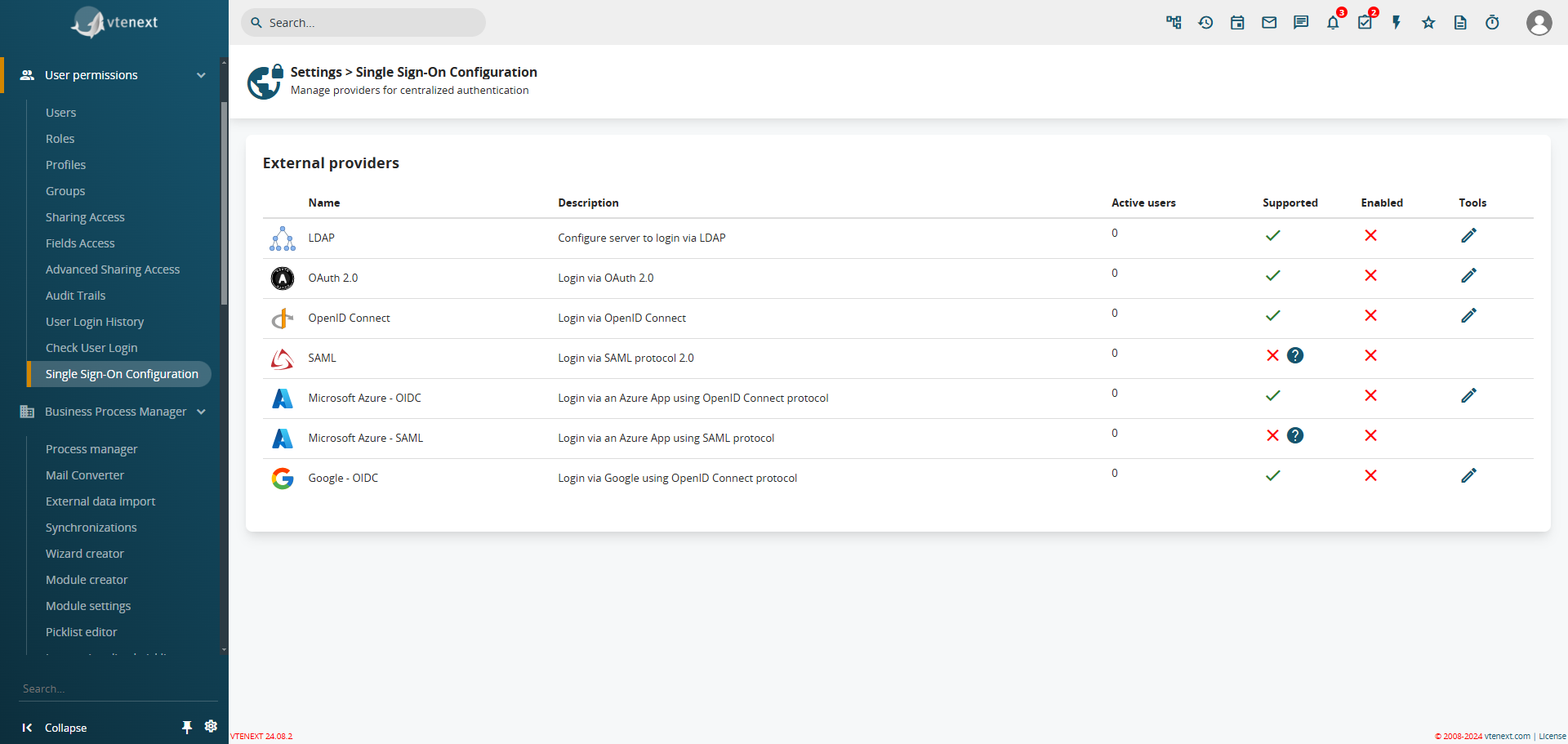
Single Sign-On Configuration Screen
vtenext provides the following Single Sign-On (SSO) providers:
| LDAP |
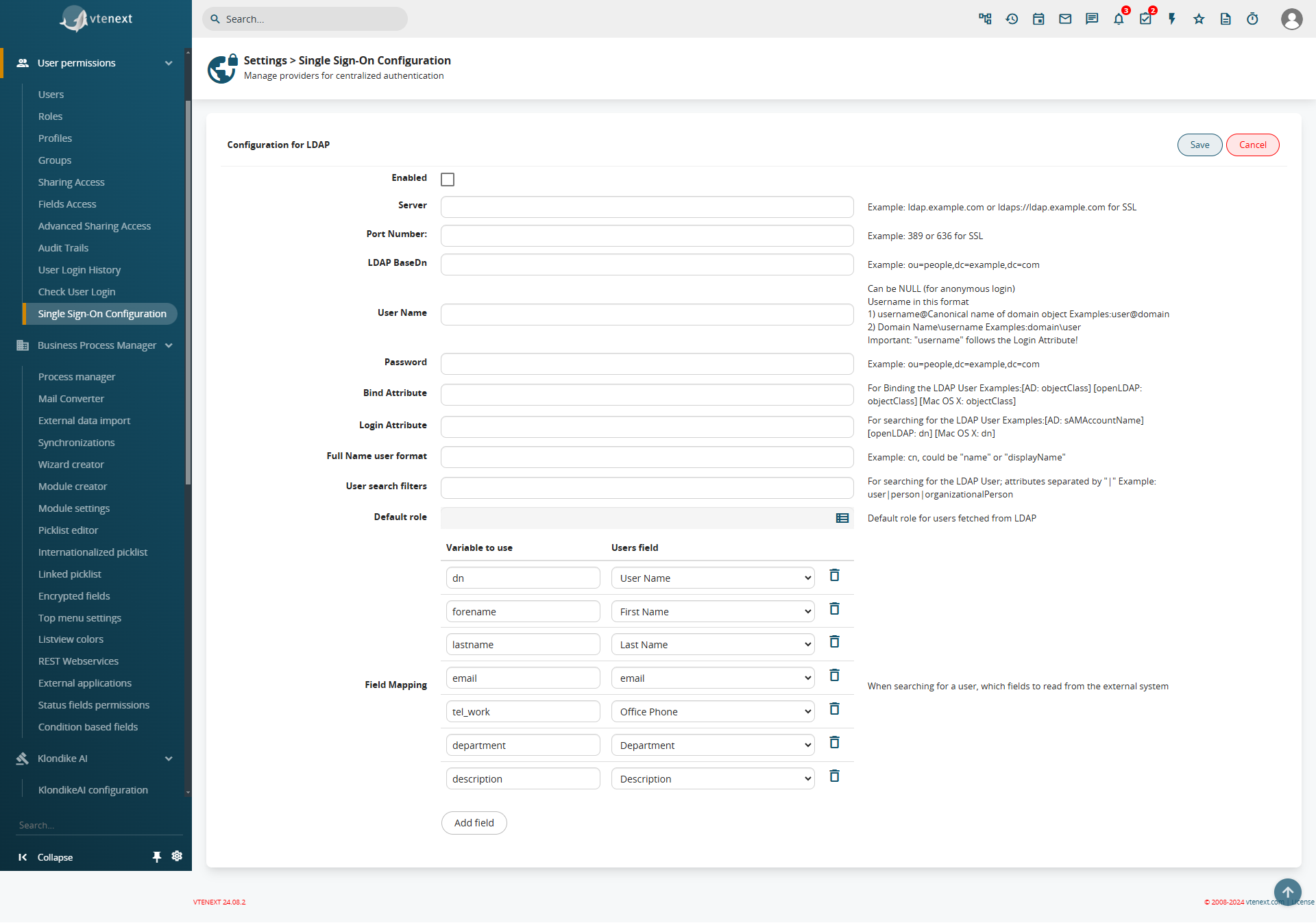
Configure the server to access via LDAP (LDAP configuration has been moved here)
|
| OAuth 2.0 |
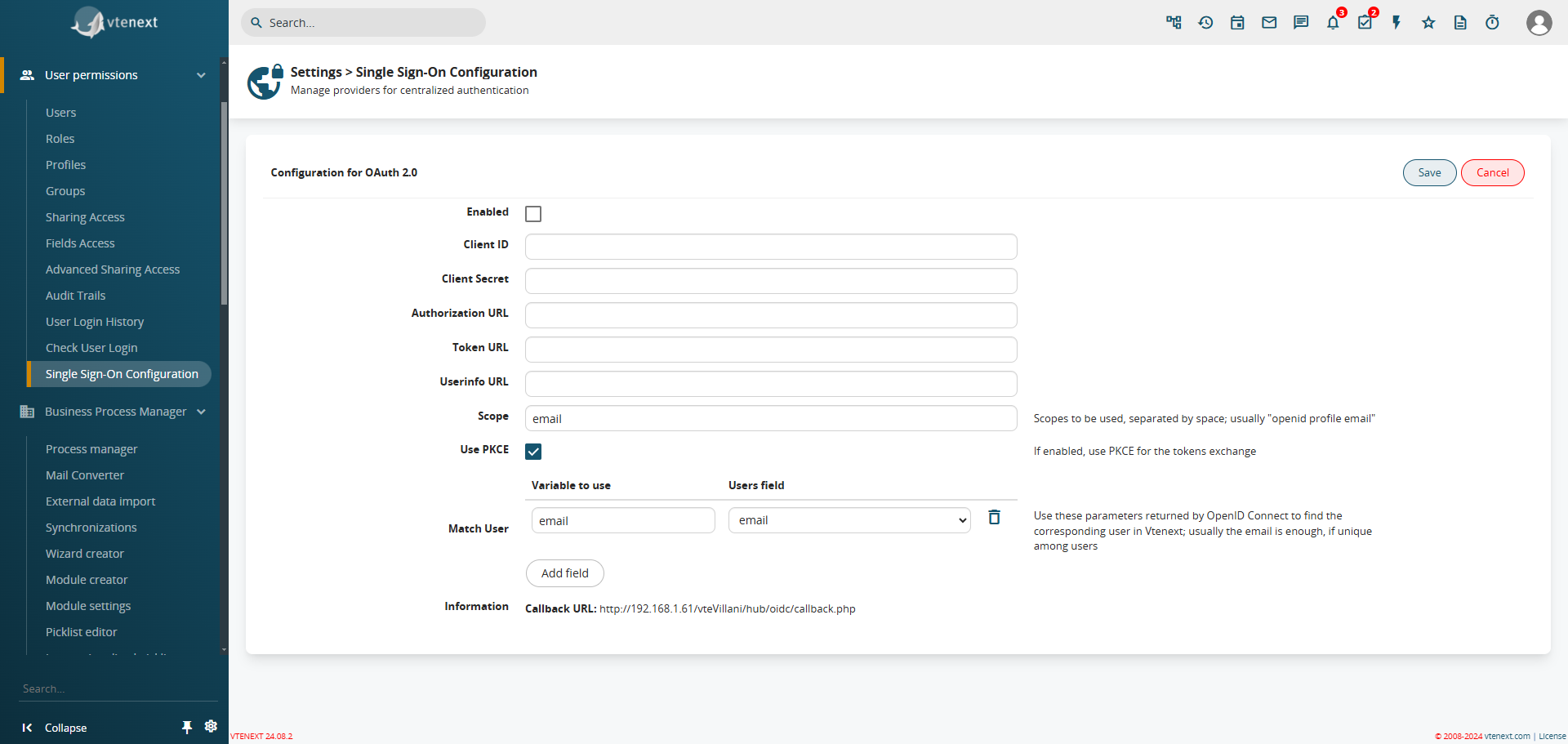
Login via OAuth 2.0
|
| OpenID Connect |
Login via OpenID Connect
|
| SAML | Login via SAML 2.0 Protocol |
| Microsoft Azure - OIDC |
Login via an Azure App with OpenID Connect
For information on how to create the app in Azure, please refer to the specific guide |
| Microsoft Azure - SAML |
Login via an Azure App with SAML For information on how to create the app in Azure, please refer to the specific guide |
| Google - OIDC |
Login via Google with OpenID Connect
|
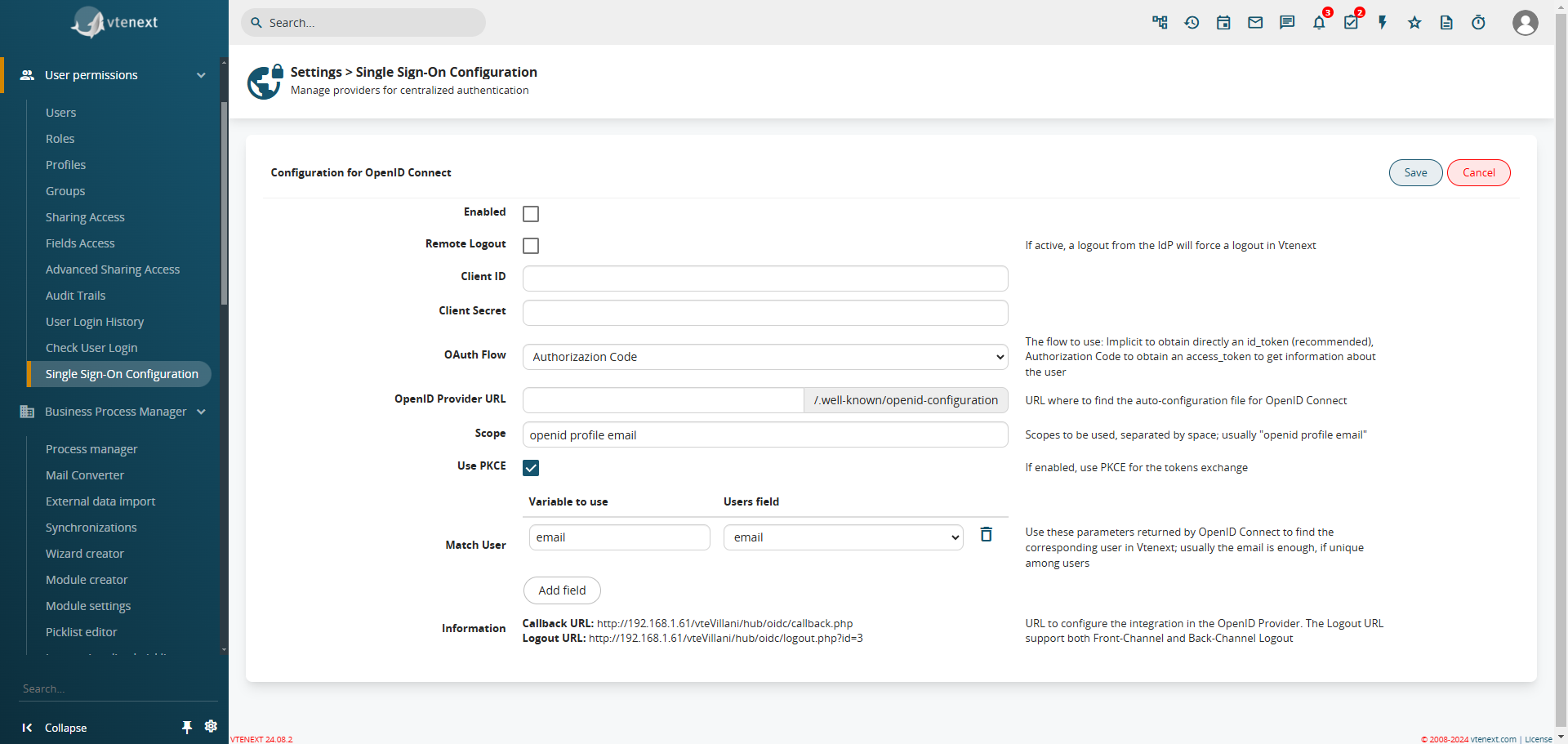
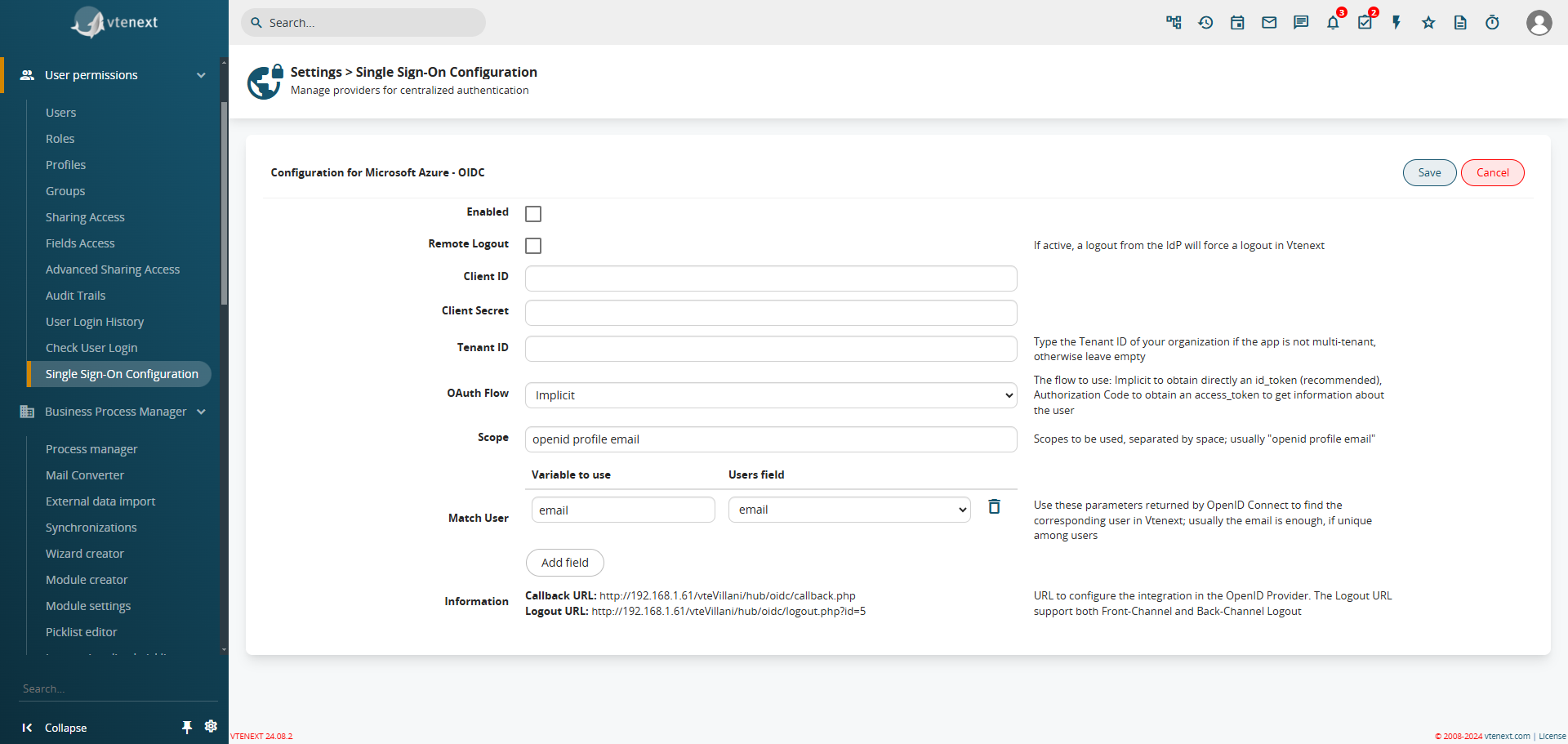
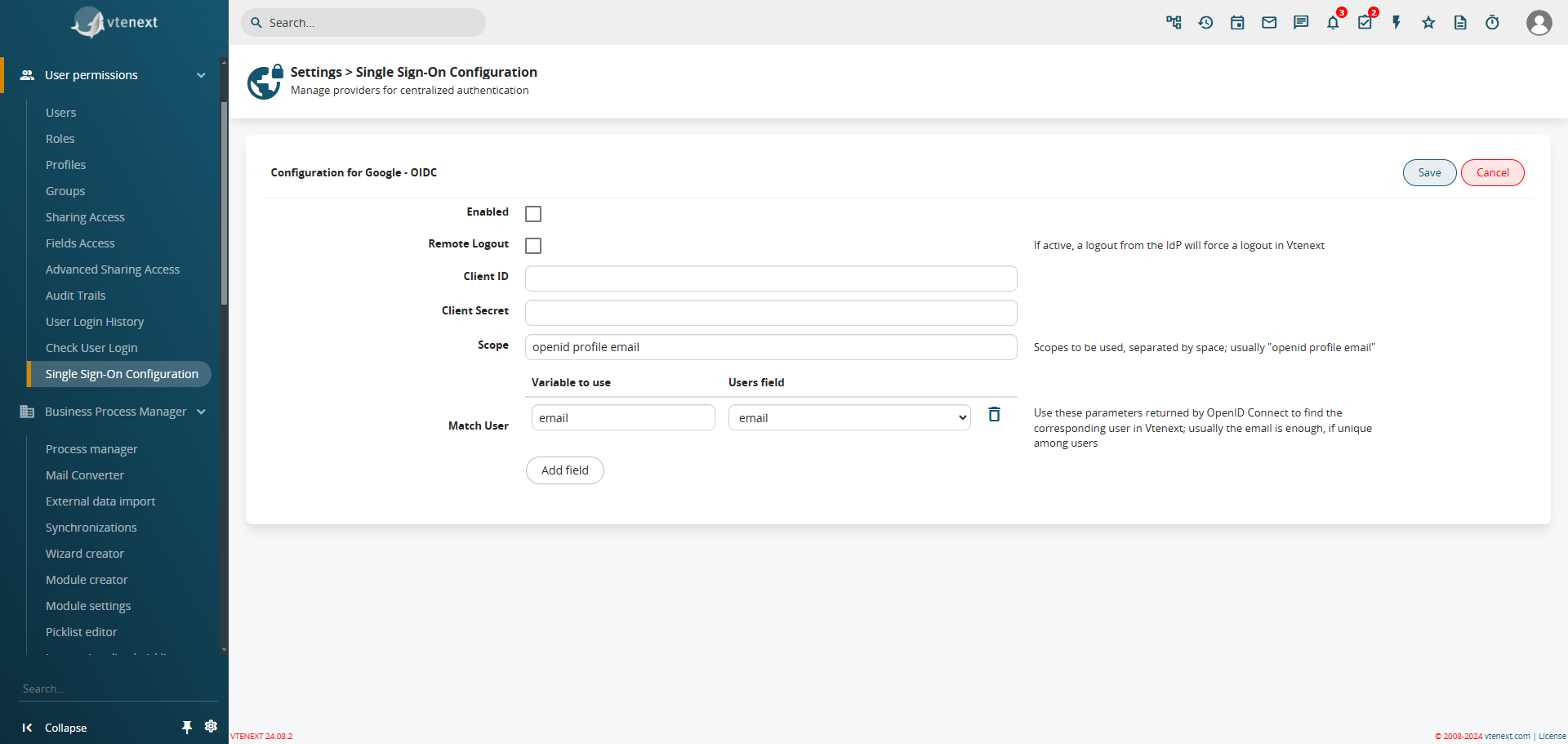
For all users, except the ADMIN user (this does not refer to users created after the admin and set as administrators, but only the superuser), it will be possible to select which type of authentication to use. In the dropdown list, only the configured and active authentications can be selected:
User preferences with the option to choose the Single Sign-On.
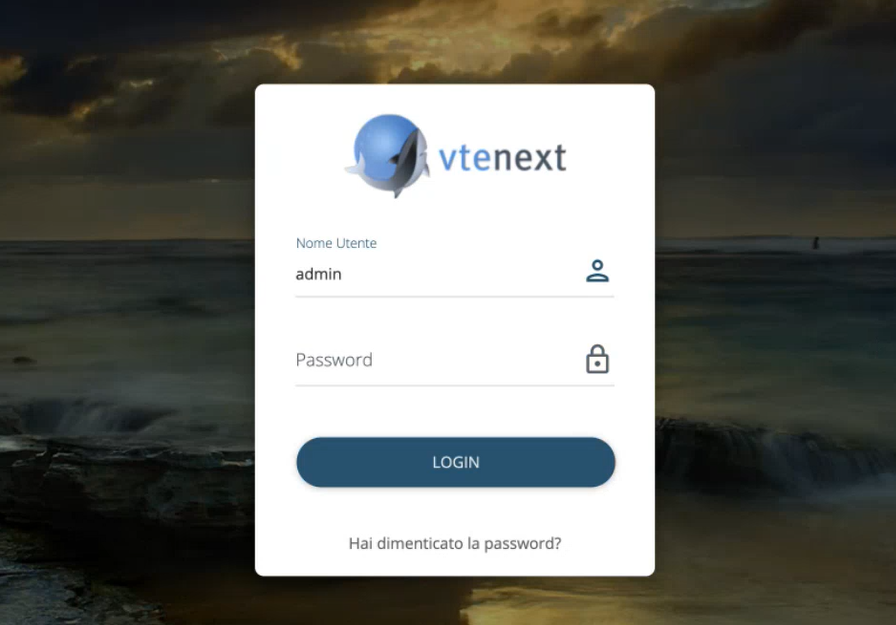
How the Login Screen Changes
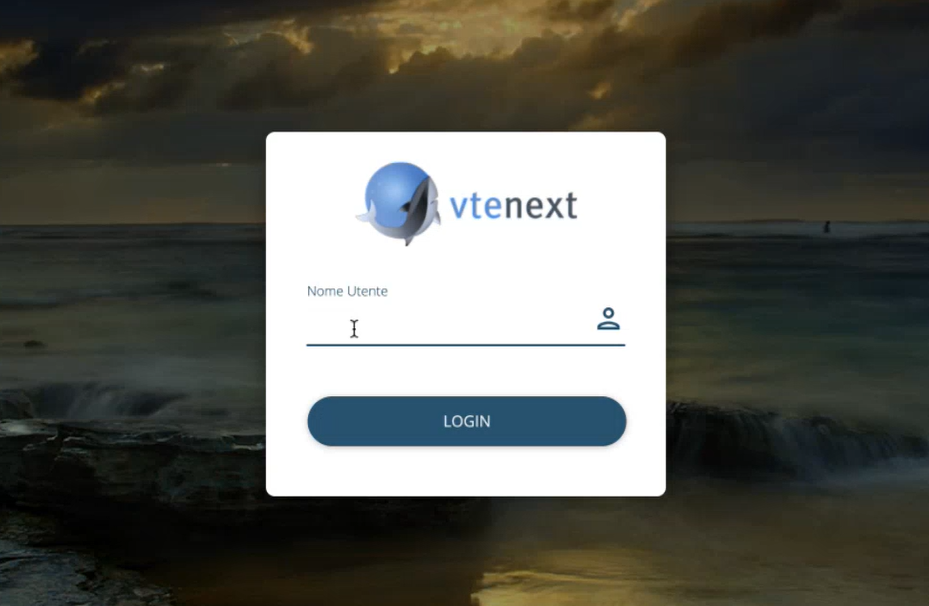
We can notice that the login screen no longer includes the password field, as it will call the external authentication system that was previously configured (e.g., Google or Facebook). Once the login is completed in the external system, the user will return to vtenext already authenticated, or the password field will be activated to manually enter the password and log in.
Single Sign-On also on Wilson
Naturally, as soon as Single Sign-On is activated for a user, it also reflects on Wilson. The password field, in this case, is always disabled, and the system will always redirect to the chosen app for authentication, then return authenticated to Wilson.