
5.2.3 Email Functions
|
|
Compose a new email. |
|
|
Download emails from the email server |
|
|
Messages module settings (user's personal settings) |
|
|
Mark message as read/unread |
|
|
Mark message as important |
|
|
Move email to another folder |
|
|
Mark as spam (the email is moved to the Spam Folder) |
|
|
Delete email (the email is moved to the bin) |
|
|
|
|
Create Event/to-dos |
Create calendar activity from the email |
|
Link |
Link the email to an object in vtenext |
|
Translate |
Open Google Translate for instant translation of the body of the email |
|
Download attachments |
Download a single zip file containing the attachments, if more than one |
|
|
Download attachment |
|
|
File attachment as a CRM document / View document tab |
|
|
Link document to an object in vtenext |
|
|
Open attachment preview (supported extensions: odt, pdf and common image formats) |





Emails can be linked to CRM modules by means of the Link function:
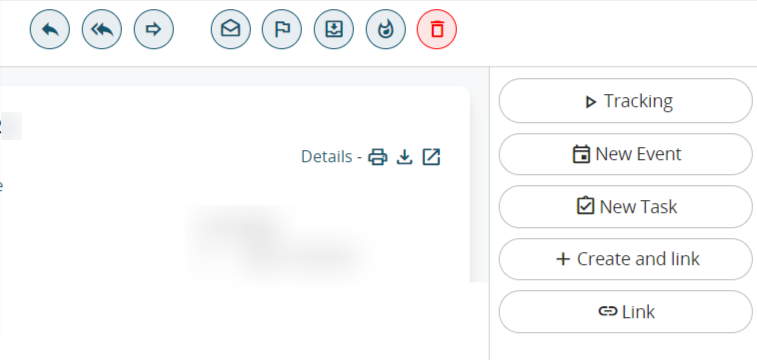
Through the “Link” function it is possible to relate the emails to the CRM modules:
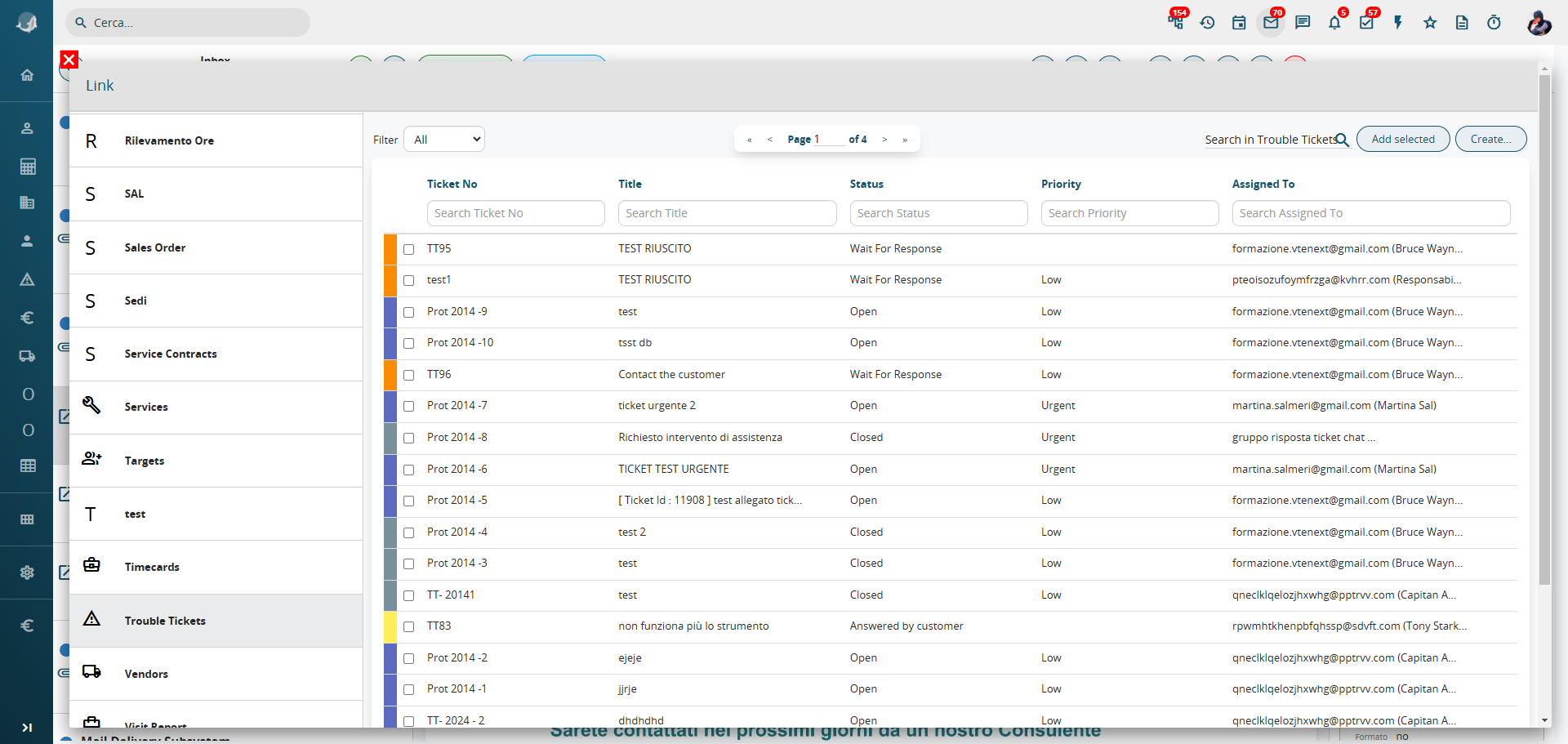
The system suggests possible links automatically based on the sender's email address. You can edit the “Filter” item to extend to search also to include results beyond the suggested ones. The “Recents” button, which is accessible from the “create and link” function, allows you to access the modules most recently visited.
If you can’t find a match with an existing element, you can create a new record (for example a new account) by means of the “Create” button.
Once the connection has been made, it will be highlighted with the symbol  , which will be visible both in the email list view and in the email detail with an indication of the linked record.

Linked emails will be also visible in the records, via Relations > Messages. Visibility of emails is subject to the Sharing Access configuration (Linked Messages module item).
Display the folders in the email inbox.
To view all the folders of an email inbox, simply click on the arrow located at the top left of the Messages Module, as shown in the following image.
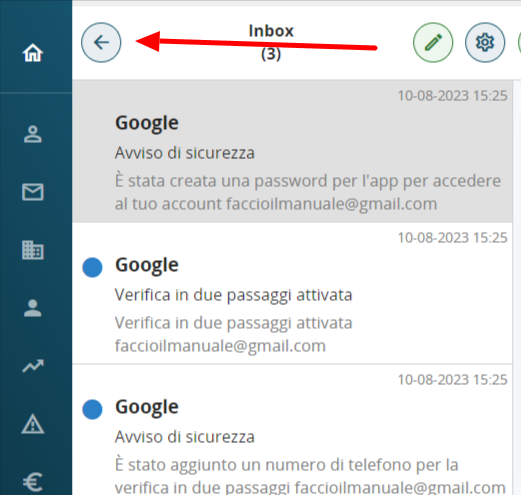
After that, the complete list of available folders, previously created either directly from the browser or from another email client, will appear.
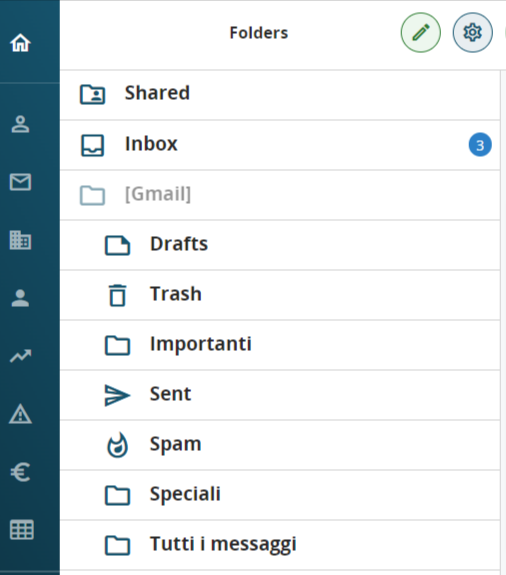
The "UNSEEN" email folder has been added to the list of folders for convenient searching and access to emails.
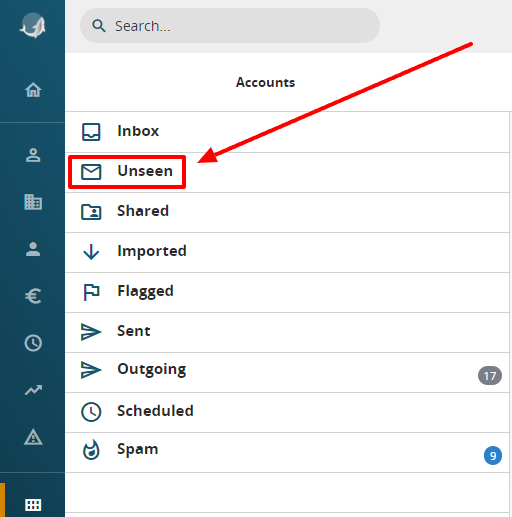
Mark all emails as read.
To mark all emails as read, it is essential to follow these simple steps:
1. From the left column of the Message module, click on the edit icon (pencil) as indicated in the image below.
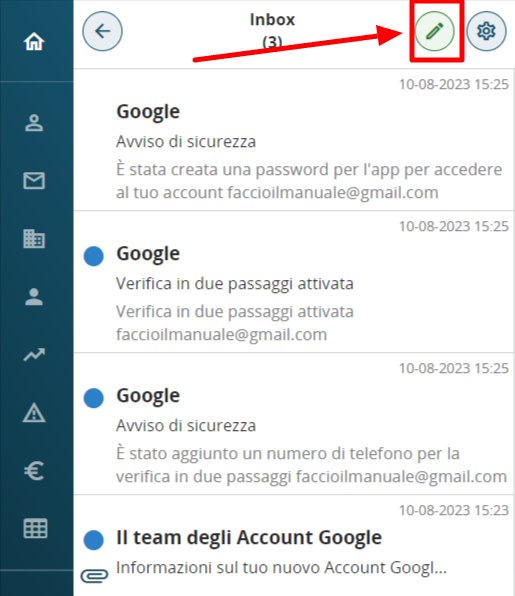
2. Finally, select all the emails you wish to mark as READ and click on the MARK AS READ icon, as indicated in the image below.
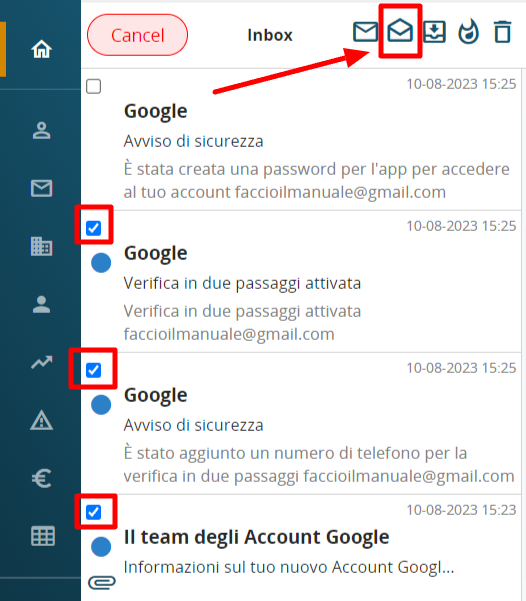
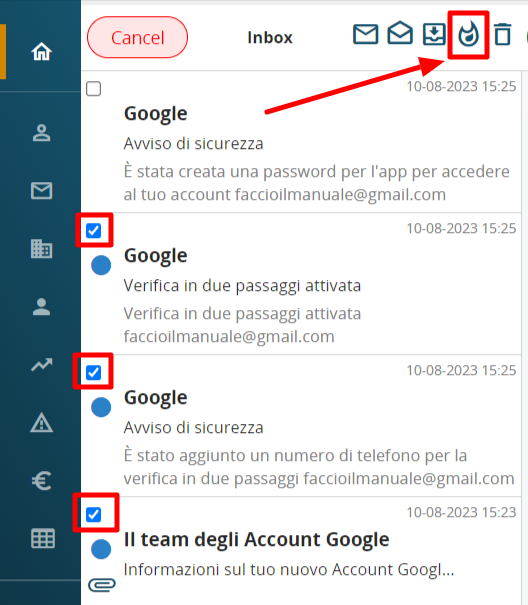
Using the same method, you can also bulk mark emails as SPAM/JUNK by clicking on the flame icon, as shown in the image below.
*Email search
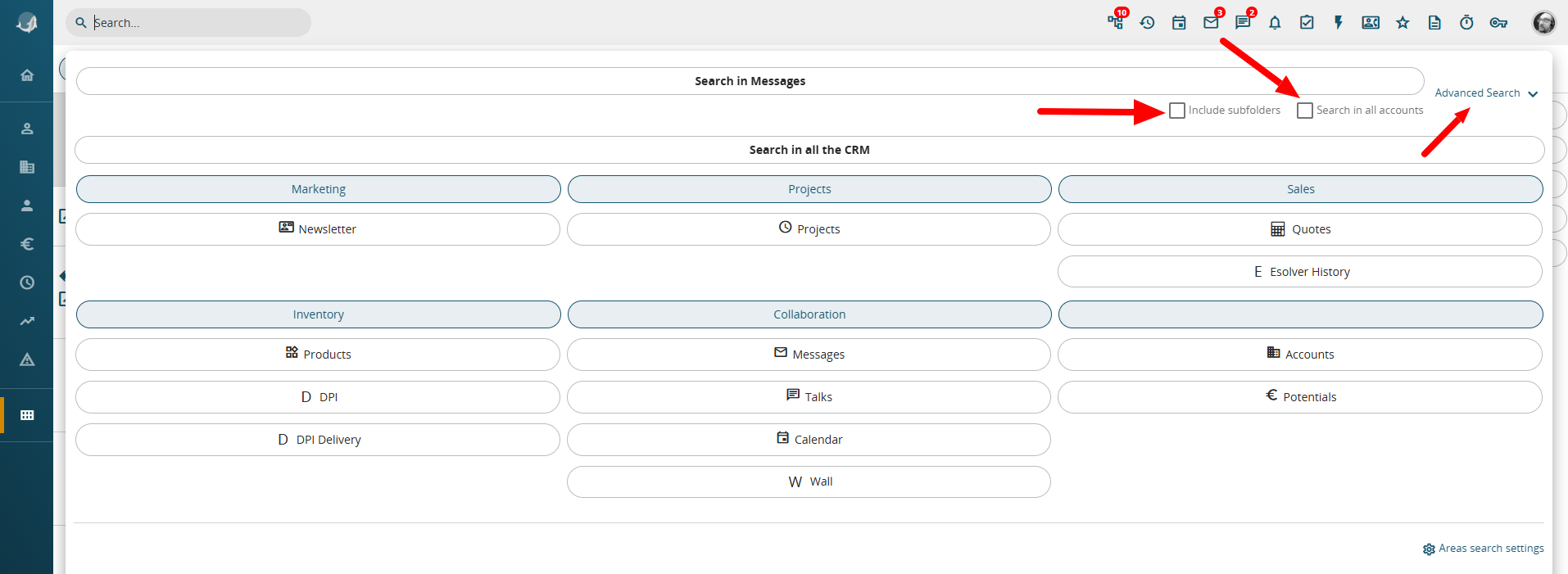
When clicking on the SEARCH area in the top left, this screen appears
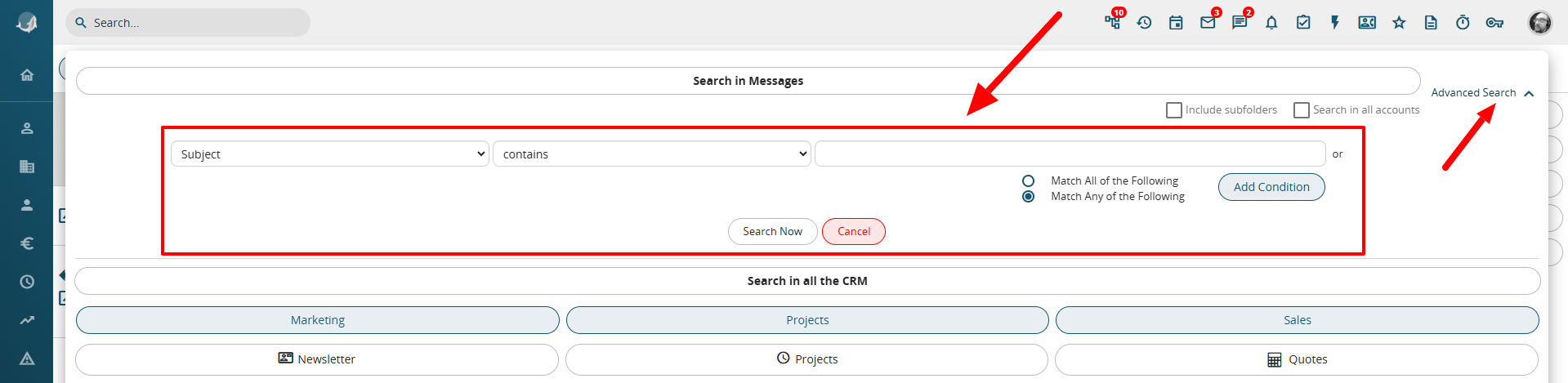
When clicking on Advanced Search, this set of options appears
It is possible to search Messages using the dedicated SEARCH function located at the top left. Searches can be conducted in various ways:
- Include Subfolders: Allows searching within the subfolders of the same email account.
- Search Across All Accounts: Enables searching in other email accounts if they are configured (note that each user can have multiple email accounts configured in their Messages module).
- Advanced Search: Provides a set of options for precise email searches. You can search by Subject, Sender, Recipients, Body, Date, or filter between read and unread messages.