
17.7.3 Table field
The Table Field in vtenext can serve various purposes, such as creating a list of items within an existing record. This type of field can consist of additional fields and variables.
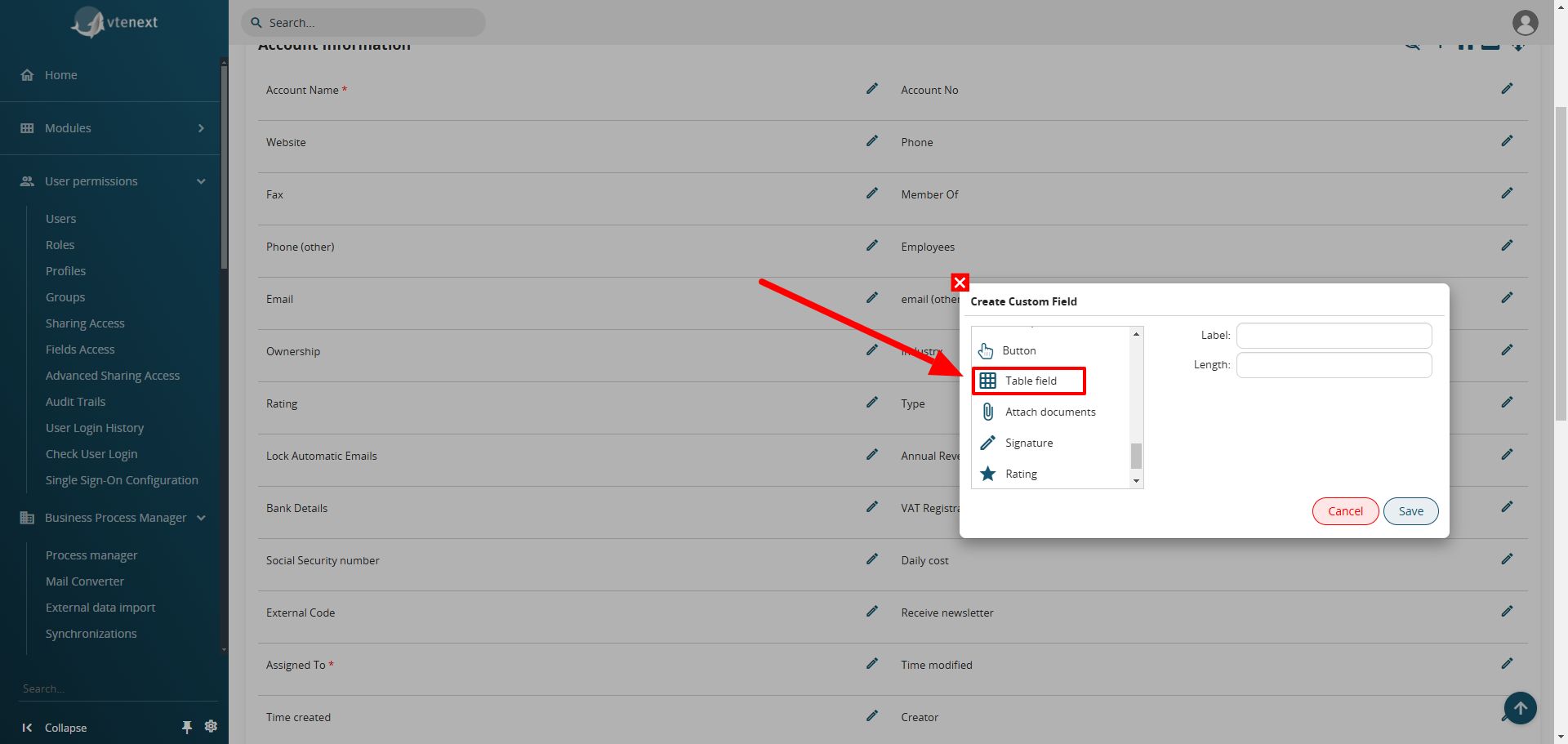
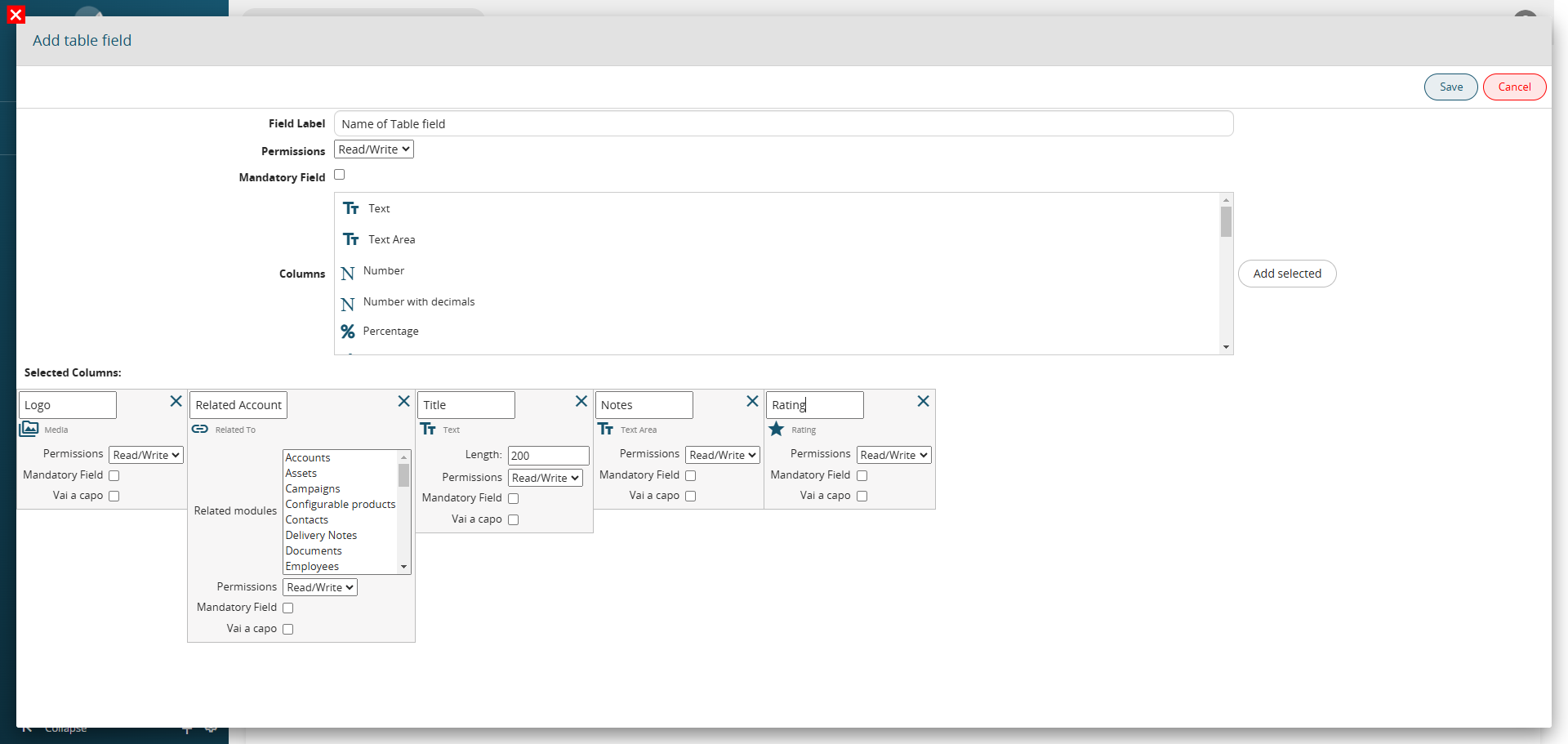
On this page, you can define the fields that will make up the table. Below is a list of available field types (most of these are the same as those found in the layout editor for a standard module)
|
Text |
It is a field that can contain from 1 to 255 characters (letters and numbers). The desired length and the name to be given therefore need to be defined. |
|
Text Area |
Text field with pre-set dimensions, visual width equal to the card and with a maximum number of characters of 66,000 (letters and numbers) |
|
Number |
Contains up to 9 digits without decimals. |
|
Number with Decimals |
It is a field that can contain from 1 to 64 numbers (including decimals). The desired length, the name to be given and how many decimal places to enter and display therefore need to be defined. |
|
Percentage |
The name to be given to the field needs to be defined (it is recommended to insert the % symbol in the label, as a reminder). The field is purely numeric with the impossibility of exceeding 100% |
|
Currency |
The name to be given, the desired length and how many decimal places to enter and display need to be defined |
|
Date |
The name to be given needs to be defined. Activate the datapicker and autocomplete with today's date in the entity creation phase |
|
Hour |
It allows for the creation of a time field, with the option to assign a name, and provides the ability to click on a clock icon to select the time directly from a clock face. |
|
Datetime |
It allows for the creation of a field that captures both the date and the full time. The format will be dd-mm-yyyy - hh:mm, with the option to assign a name. |
|
|
The name to be given needs to be defined. Once the email address is saved, if clicked, it will open the predefined composer window to create a new message |
|
Phone |
The name to be given needs to be defined. Once the number is saved, if the switchboard is configured, you will be able to use click-to-call |
|
URL |
The name to be given to the field needs to be defined. Once saved, the URL address allows you to open it in a new tab |
|
Check Box |
This is a YES/ NO flag field. The name to be given needs to be defined |
|
Picklist |
To create a drop-down menu with the fields of your interest. The name to be given to the field and to the values (one below the other) of the list needs to be defined |
| Skype | Define the name to be attributed. Once the Skype ID is saved, it will open the chat directly with the ID setted. |
|
Combo multisection box |
To create a drop-down menu where, using the CTRL key, you can select multiple values. The name to be given to the field and to the values (one below the other) of the list needs to be defined |
|
Skype |
It allows for a direct link with the Skype application, typically used to call the Skype contact entered in that field, with the option to assign a name.
|
|
Related to |
It allows you to create a related field within a module, but it will not be possible to reference the same module multiple times or to reference itself (e.g., within a Support Ticket, it is not possible to link the Trouble Ticket module) |
|
User |
The name to be given needs to be defined. It is used to insert an additional link to the entity with a user |
|
User without filtering permits |
The name to be given needs to be defined. It is used to add a link between the entity and a user by bypassing roles and permissions |
|
User from filtered list |
The name to be given needs to be defined. It is used to add a link between the entity and one of the users defined upstream |
|
Group |
The name to be given needs to be defined. It will provide a drop-down menu with any available groups |
|
Rating |
It allows the display of a rating system from 1 to 5 stars, to which a name can be assigned. |
|
Media |
It allows the upload of images/videos/audio and displays a preview (if the connected source permits) in the detail view of a record. When filling in this type of field, it is also possible to specify a remote URL. |
Practical Example of a Table Field
Imagine wanting to link car dealerships to a main headquarters for evaluation purposes. Instead of using the "Member Of" field, you can create a dedicated Table Field.
Example Configuration:
- Media: Upload the dealership's logo.
- Related To: Link the dealership to the correct company.
- Rating: Assign a rating to the specific dealership.
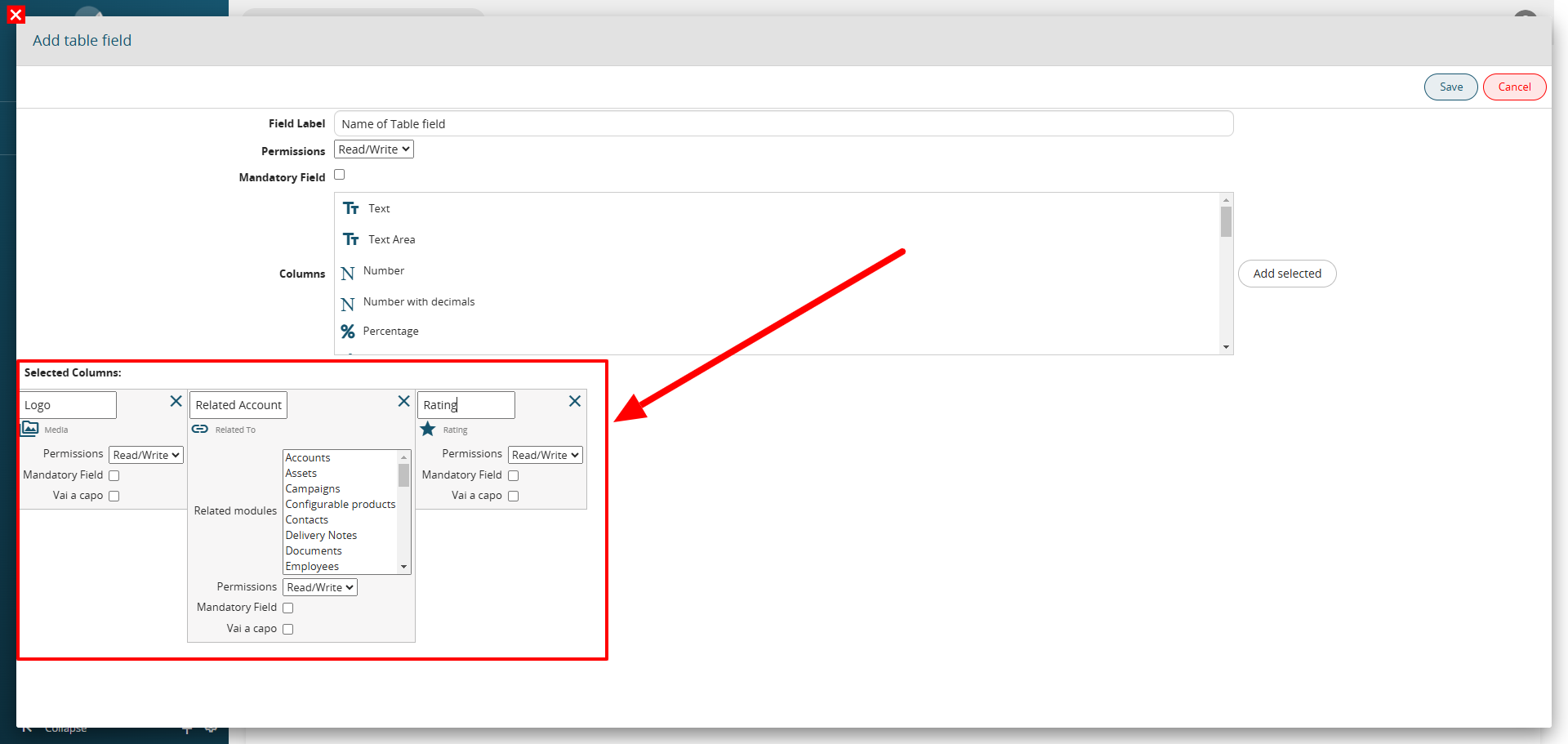
The configuration screen for the Table Field would display the selected fields and their settings
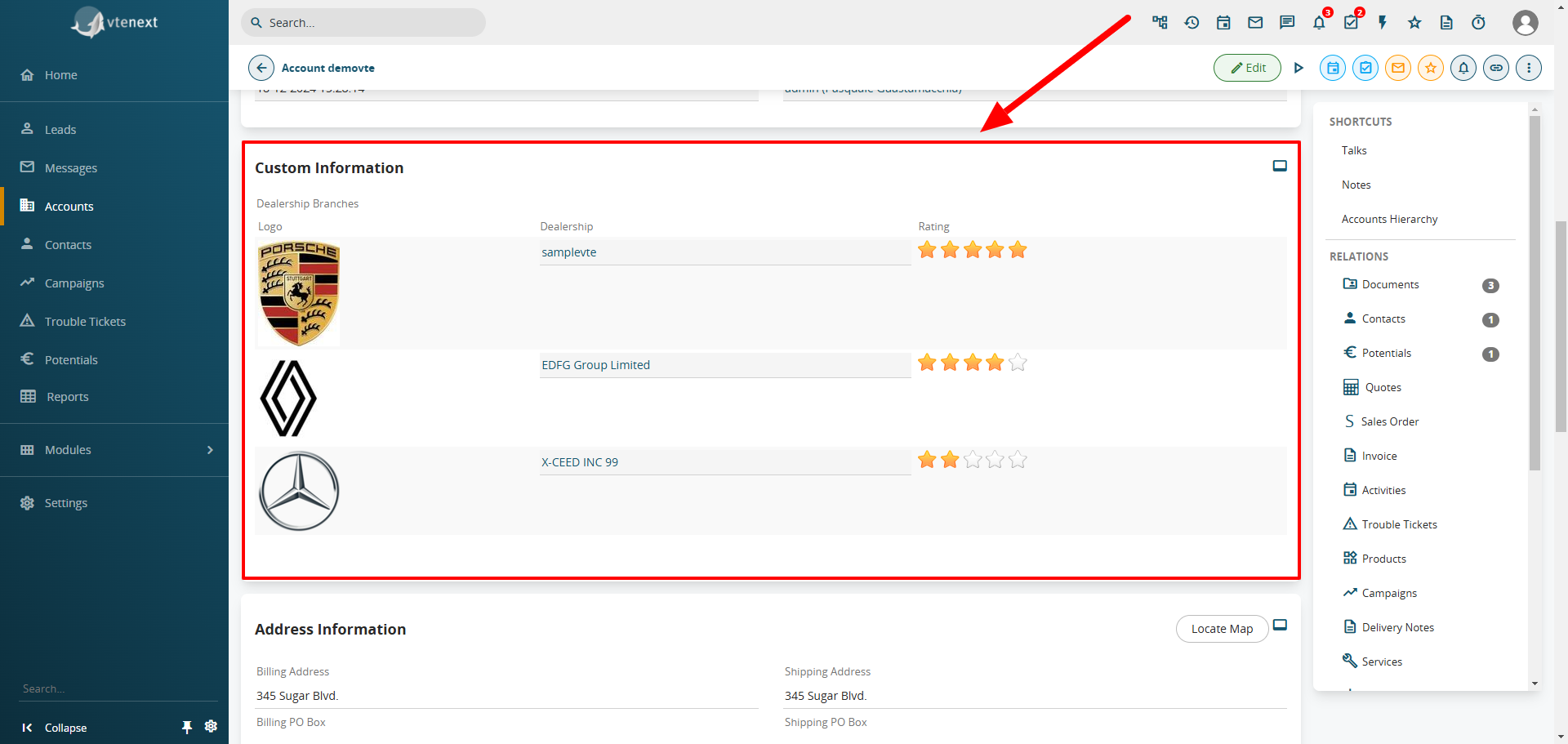
In the detailed view of the main company record, the table field will show all the linked dealerships with their logos, associated companies, and ratings