
7.2 Activation of a Basic Process - Approval of Quotation
Now let's proceed with the vision of the process in action.
We then create a new quote by entering the requested information (Figure 1)
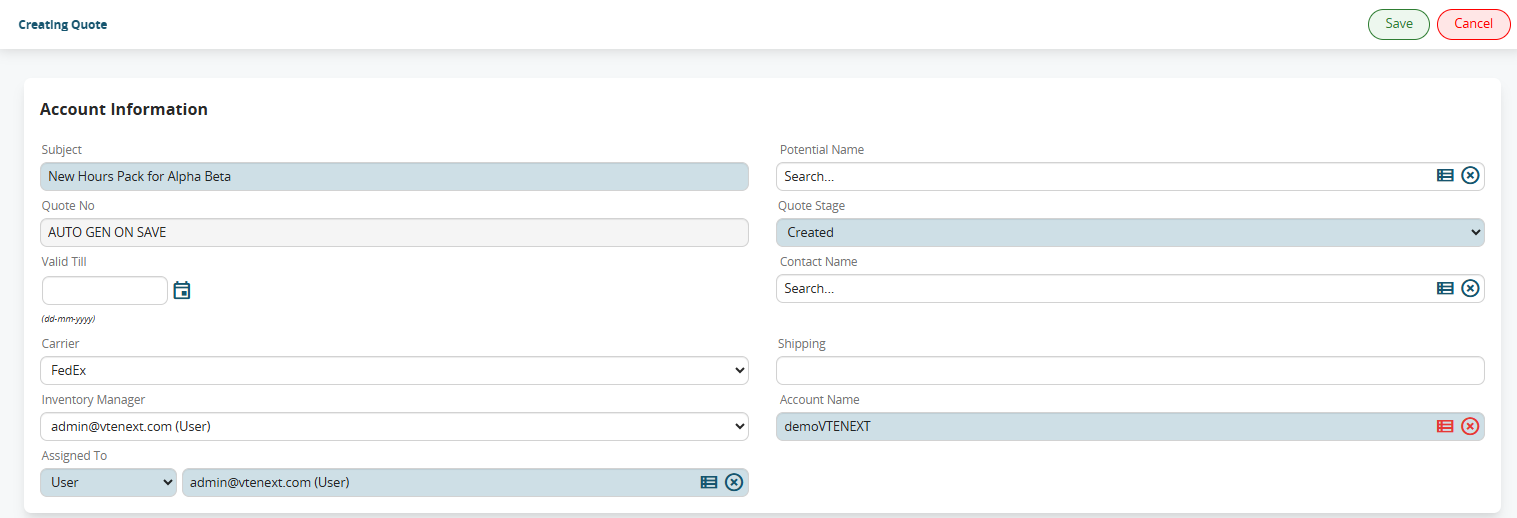
Figure 1
After saving, the process will start by presenting a preview mask to each member of the “Direction” group (Figure 2).
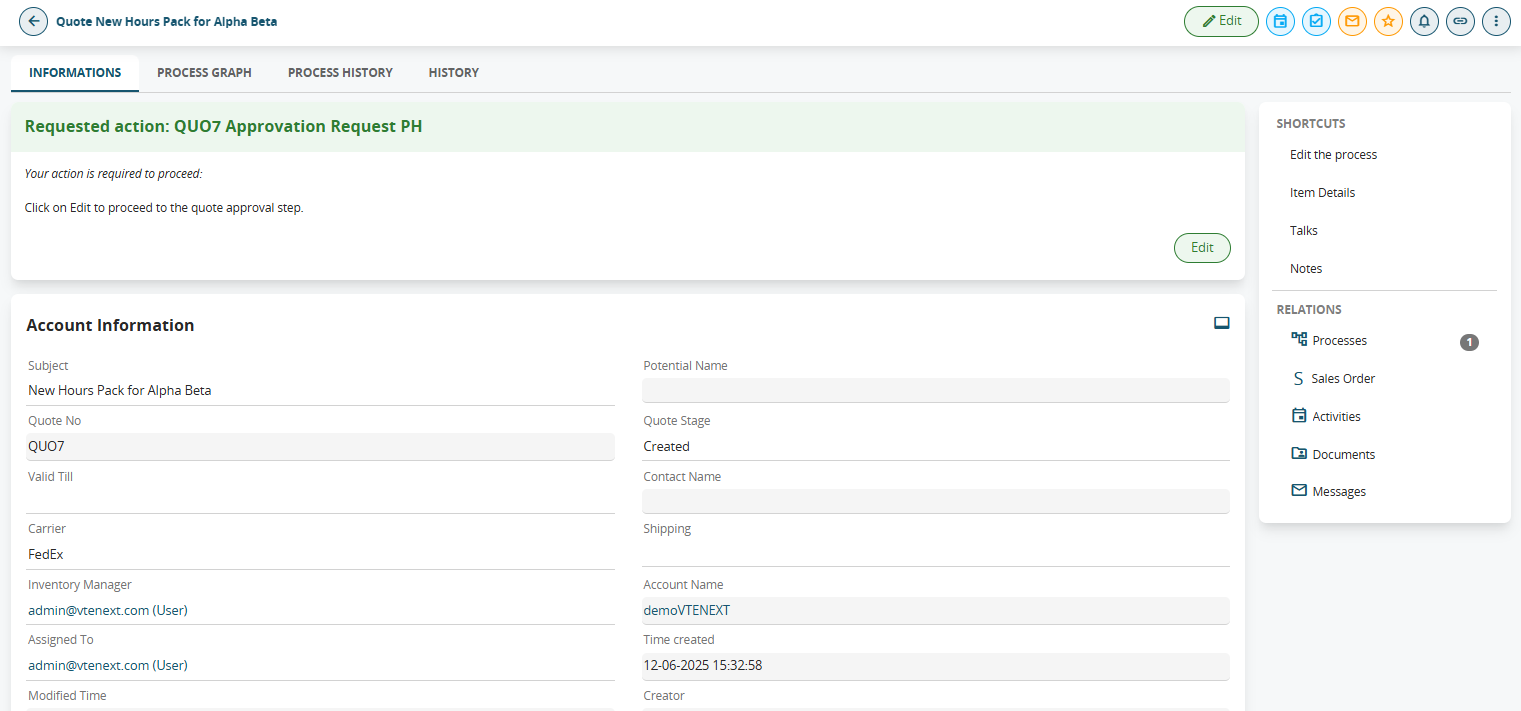
Figure 2
However, the task described above will only be visible by entering the estimate's details, so in this case it is possible to fill in the process helper through the "Processes" section accessible from the top right menu. (see Figure 3)

Figure 3
In fact, it contains all the pending processes assigned directly to the user or to any groups to which he or she belongs, so all you have to do is look for the line with the following information (see Figure 4):
-process name: “PH approval request QUO94”
-linked to: “New hour package for Alpha Beta” (i.e. the Subject of the estimate)
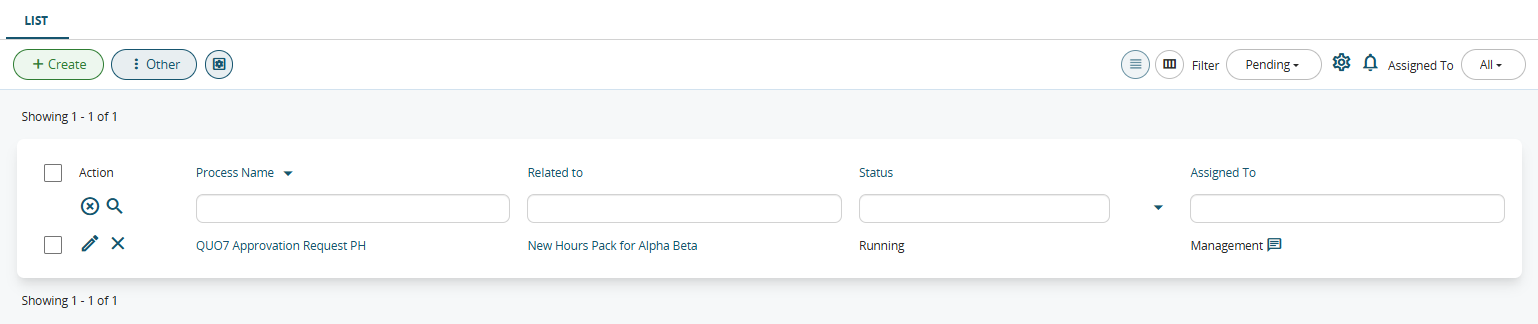
Figure 4
After that, simply click on the pencil to the left of the process name to be able to fill out the process helper (which will be displayed as if we were editing a module).
Once on the process helper form, the user will find themselves in front of the screen shown in Figure 5.
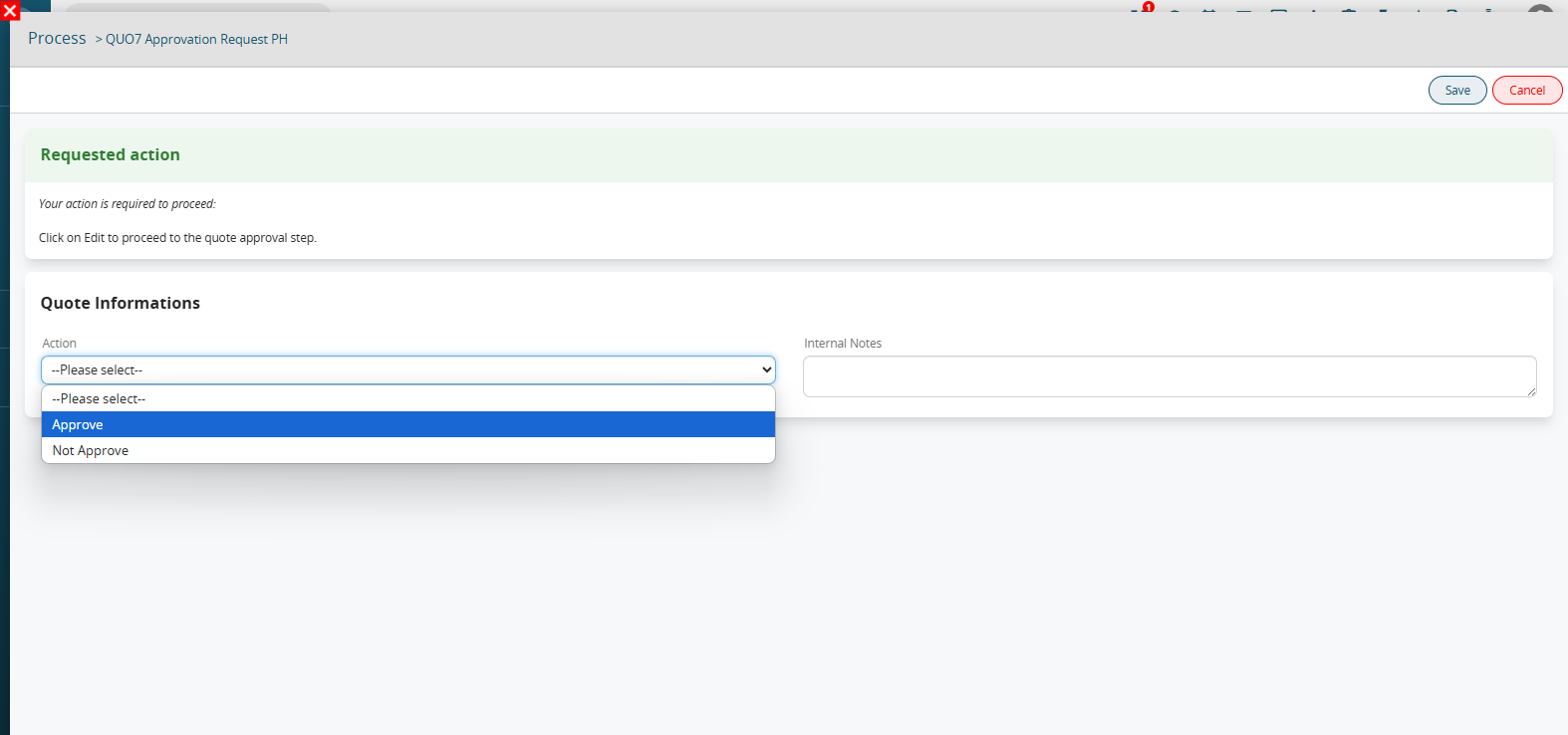
Figure 5
If you want to simulate the approval of a quote, click on the value “APPROVARE” and save the process helper.
The system will automatically send an internal notification to the quote assignee (Figure 6).

Figure 6
If you want to simulate a lack of approval of the estimate, click on the value “NOT APPROVE” and save the process helper.
The system will send an email to the assignee of the estimate (Figure 7).

Figura 7