
3.16 Cycle Related Records
This action allows you to use records (instances of a module) that have a 1- N or N - N relationship with the starting module.
In order to use the data of the records cycled within the action, the system provides (in the "Select option" picklist) a dedicated section (Figure 1)
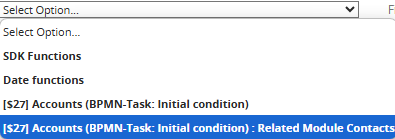
Figure 1
By clicking on the specific section, the system allows you to quickly select one of the fields present in the related module being examined (Figure 2)
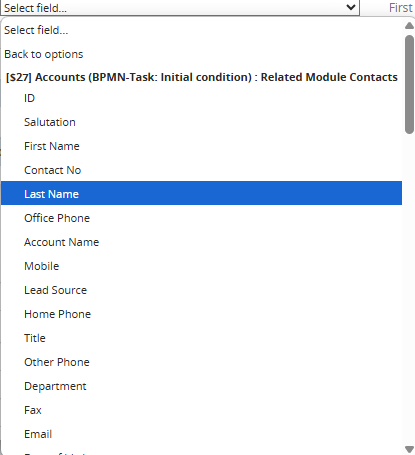
Figure 2
NOTE: the system automatically performs a filter based on the starting field from which you are consulting the "Select options" picklist, consequently it will only show the fields whose typology can be accepted by the starting field.
If, for example, inside the "Member of" field of the Company module you wanted to insert the content of the text type "Address" field, the system will not make this field available, this is because it will only allow you to select the "Related to" type fields.
Once you have selected the field of the related module you are cycling, a further picklist will be presented to the right of the "Select options" field, from which you will be able to select one of the available items (Figure 3)
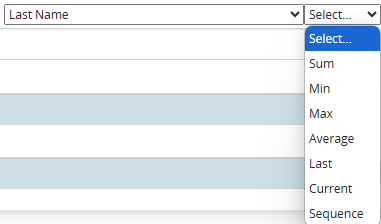
Figure 3
- "Sum" -> only for fields of type Number, Currency and Percentage, allows you to obtain the sum of ALL records of the related module concerned (connected to the starting module).
ATTENTION! -> This item ignores the conditions entered in the "Conditions" section.
To learn more about managing the partial sum of the records of the related module concerned (connected to the starting module), see chapter 9.1 of the process manual.
PLEASE NOTE: this item will still be available for other types of fields but, logically, it will not produce any results.
- "Minimum" -> only for fields of type Number, Currency and Percentage, allows you to obtain the lowest value among ALL records of the related module concerned (connected to the starting module).
ATTENTION! -> This item ignores the conditions entered in the "Conditions" section.
PLEASE NOTE: this item will still be available for other types of fields but, logically, it will not produce any results.
-"Maximum" -> only for fields of type Number, Currency and Percentage, allows you to obtain the highest value among ALL records of the related module concerned (connected to the starting module).
ATTENTION! -> This item ignores the conditions entered in the "Conditions" section.
NOTE: this item will still be available for other types of fields but, logically, will not produce any results.
-"Average" -> only for Number, Currency and Percentage fields, allows you to obtain the average value of ALL records of the related module concerned (connected to the starting module).
ATTENTION! -> This item ignores the conditions entered in the "Conditions" section.
PLEASE NOTE: this item will still be available for other types of fields but, logically, it will not produce any results.
-"Last" -> allows you to obtain the value of the last record of the related module concerned (connected to the starting module).
ATTENTION! -> This item ignores the conditions entered in the "Conditions" section.
-"Current" -> allows you to obtain the current value, i.e. the value of the record of the related module concerned (connected to the starting module) that is being cycled at that precise moment
ATTENTION! -> This item is the only one that respects the conditions entered in the "Conditions" section.
-"Sequence" -> allows you to obtain the value of a specific record (if present) of the related module concerned (connected to the starting module).
ATTENTION! -> This item ignores the conditions entered in the "Conditions" section.
To indicate the exact number of the record, you will have to fill in the field that will be presented on the right and finally click on the dedicated button (Figure 4)

Figure 5 (click on the image for a higher graphic resolution)
For each cycled record, you can perform one of the following operations:
Send email
Allows you to send an email for each record that meets the conditions set in the "field conditions" section. (Figure 6)
To consider all the records, simply leave that section unfilled.
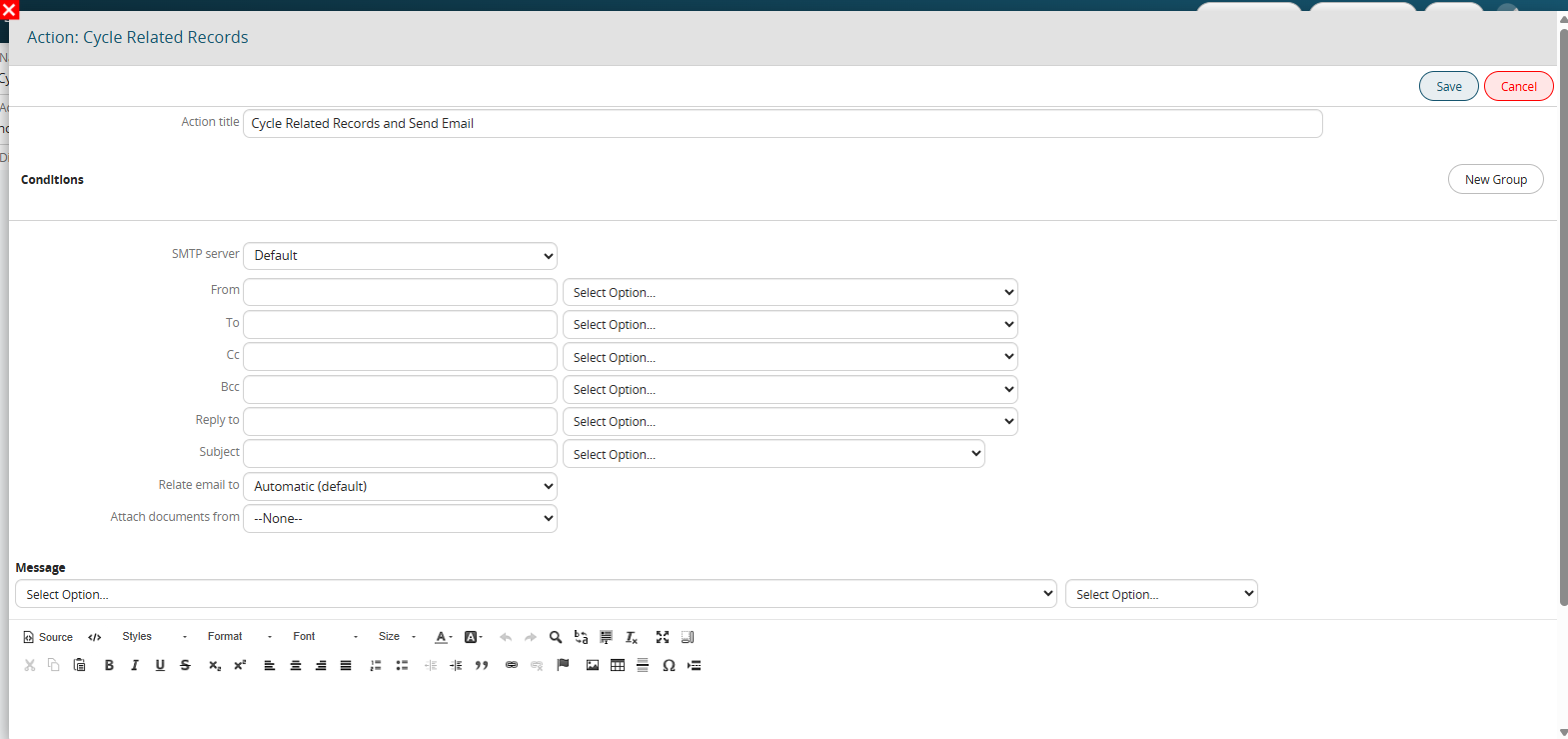
Figure 6
Create entity
Allows you to create an entity of any form (standard or custom) for each record that meets the conditions set in the “Field conditions” section. (Figure 7)
To consider all records, simply leave that section unfilled.
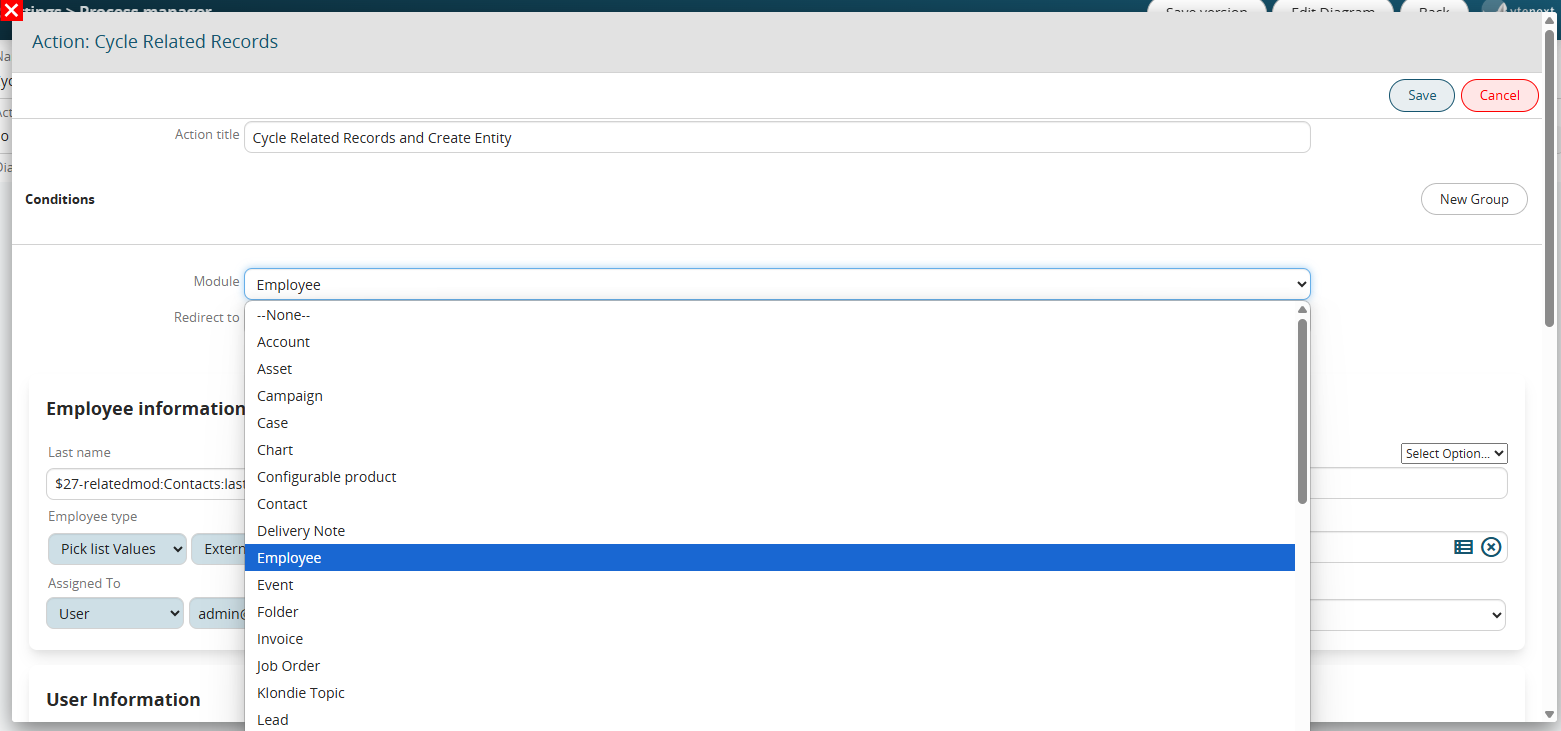
Figure 7
Update entity
Allows you to update an entity involved in the process for each record that meets the conditions set in the “Conditions” section. (Figure 8)
To consider all records, simply leave that section unfilled.

Figure 8
Send notification
Allows you to send a notification for each record that meets the conditions set in the “Field conditions” section. (Figure 9)
To consider all records, simply leave that section unfilled.
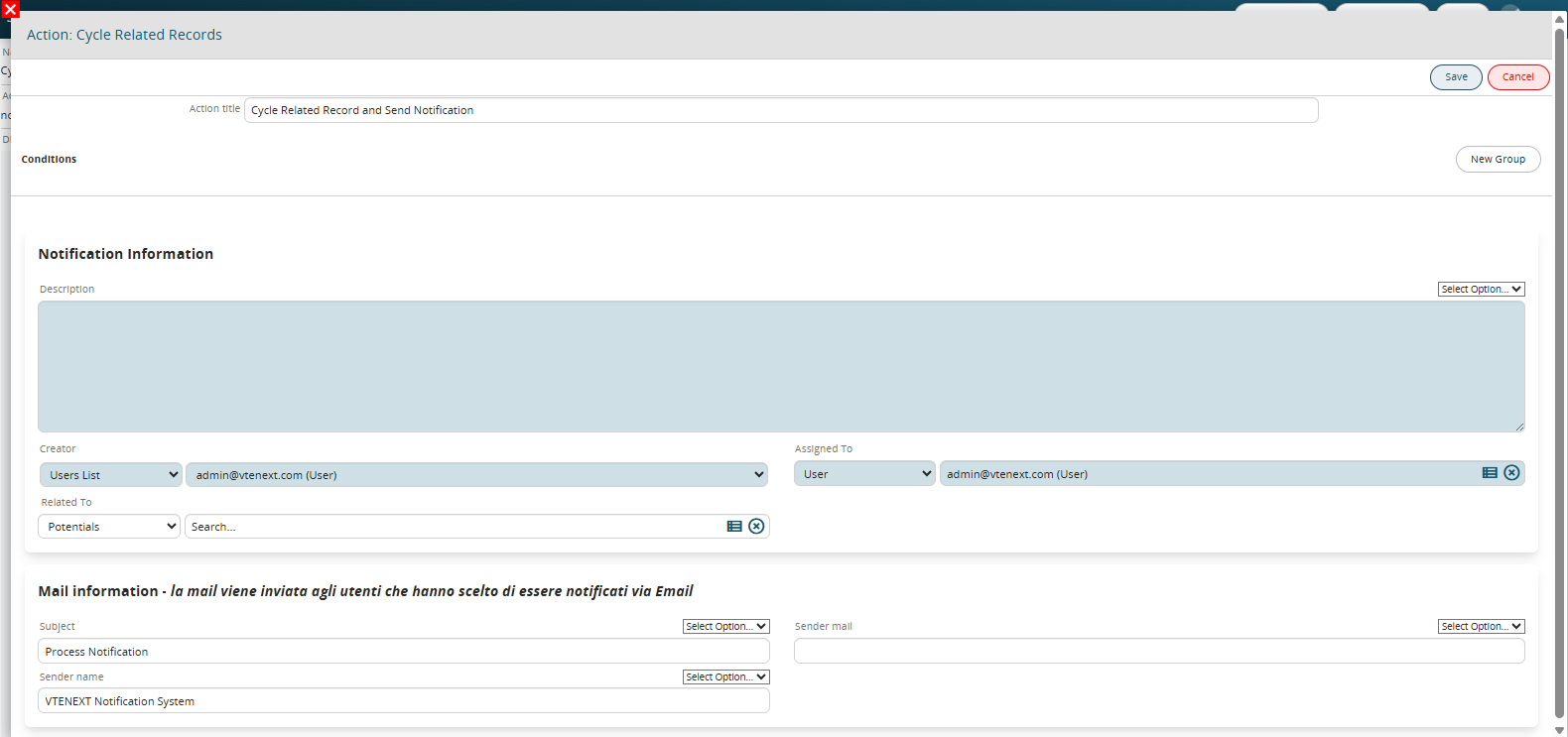
Figure 9
Insert table row
Allows you to insert a row in a table field present in the entities involved in the processes or in the process helper forms for each record that meets the conditions set in the “Field conditions” section. (Figures 10 and 11)
To consider all the records, simply leave that section unfilled.

Figure 10
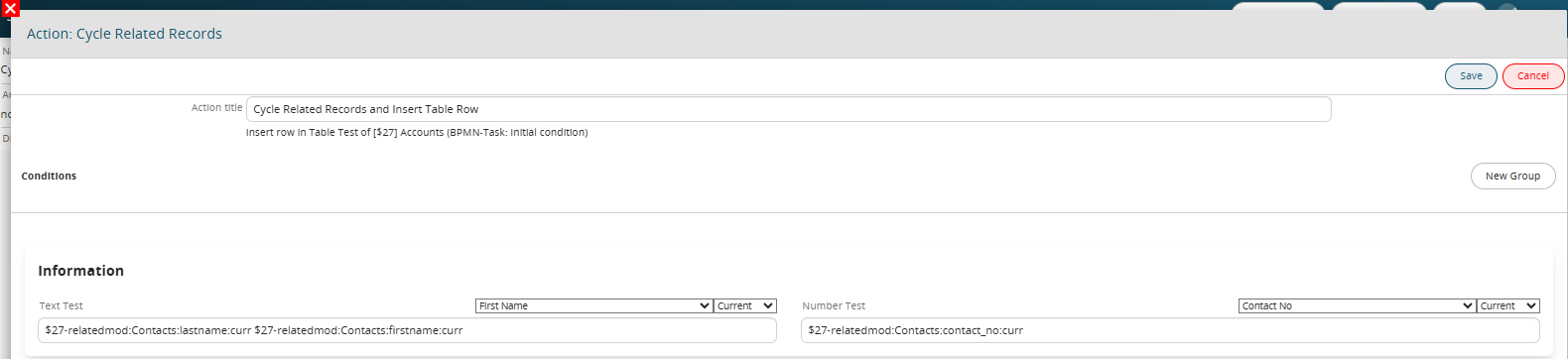
Figure 11
Create PDF
Allows you to create a PDF for each record that meets the conditions set in the “Field Conditions” section. (Figure 12)
To consider all records, simply leave that section unfilled.
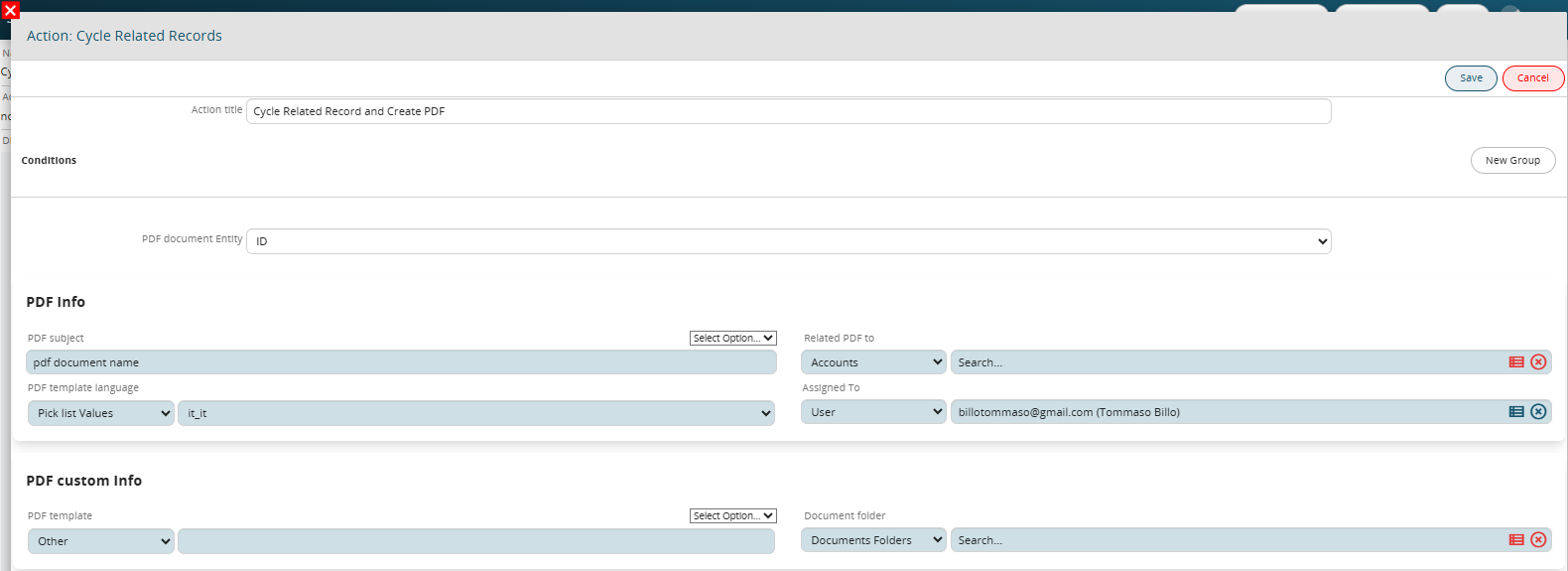
Figure 12
SDK Functions
Allows you to launch an SDK function of the Action type for each record that meets the conditions set in the “Field Conditions” section. (Figure 13 and 14)
N.B.: this feature is only available from version 25.02 onwards.

Figure 13
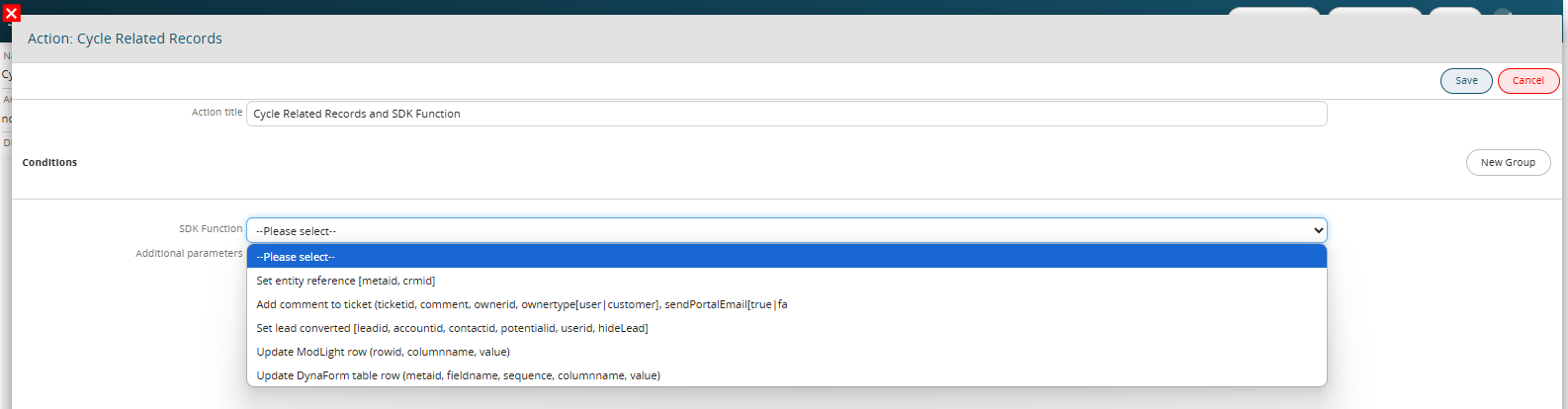
Figure 14